

Managing Your Account
Update your profile, language preference, and review your subscription details.
Your account menu gives you access to your personal settings, theme preferences, and sign-out option. From Account Management you can update your name, language preference, and review your subscription seat and organization role.
Opening the Account Menu
Select your name at the bottom of the left sidebar to open the account menu.
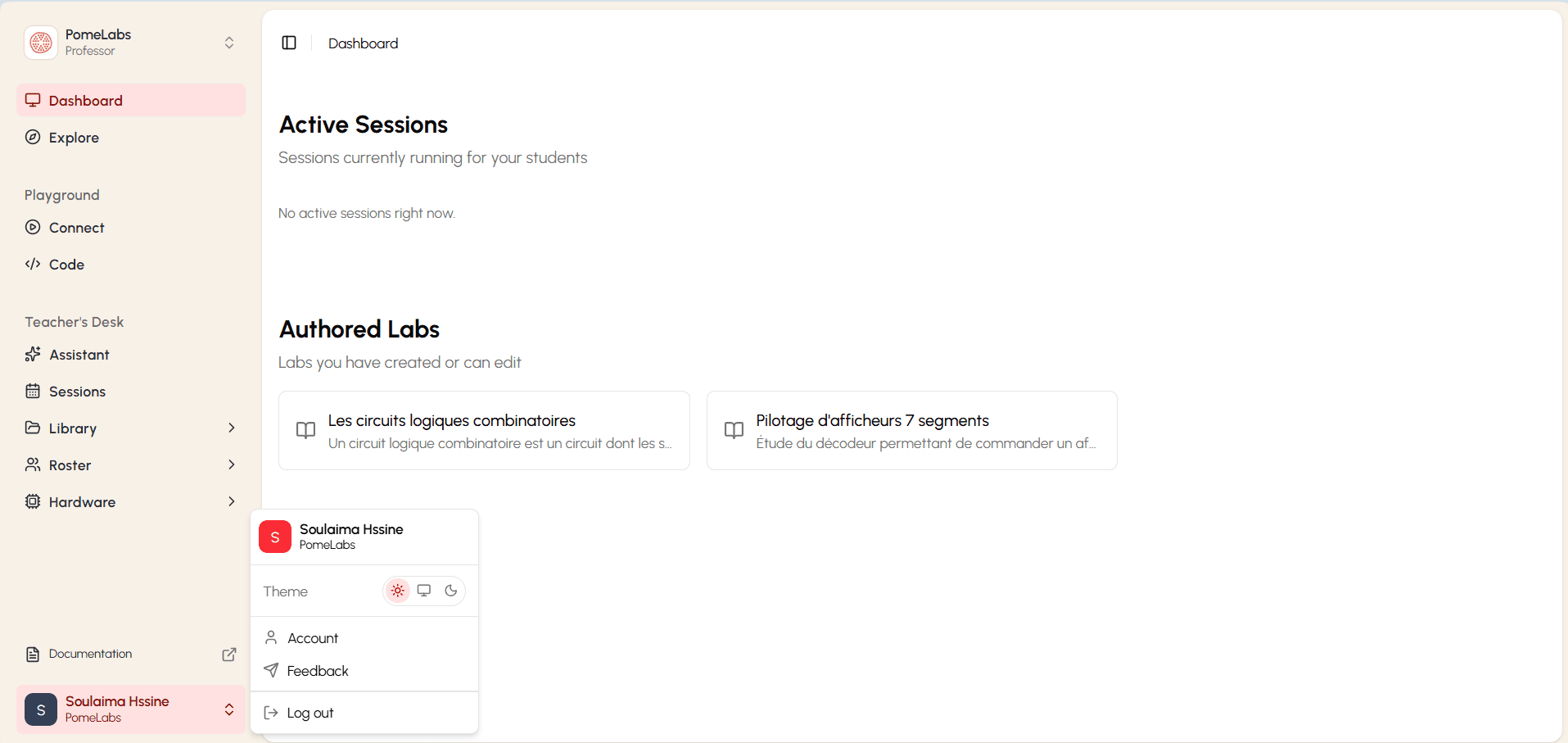
The menu contains four options:
- Theme: switch the interface between light, system, and dark mode using the three icons.
- Account: opens the Account Management page where you can update your personal information and review your subscription.
- Feedback: lets you send feedback directly to the PomeLabs team.
- Log out: signs you out of PomeLabs.
Accessing Account Management
- Select your name at the bottom of the sidebar.
- Select Account.
The Account Management page opens with three tabs: Account, Subscription Seat, and Security.
The Account Tab
The Account tab shows your personal information.
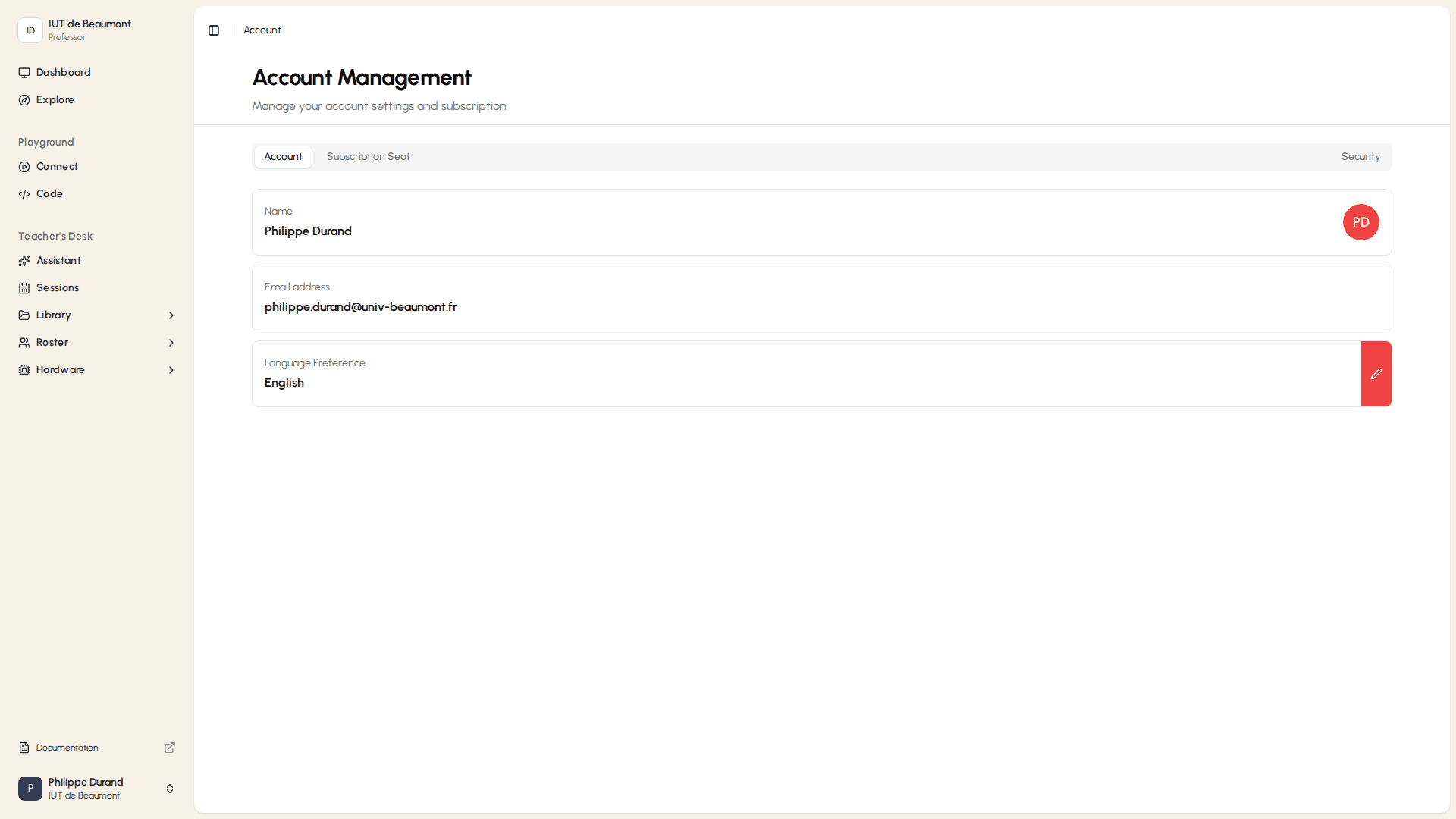
The tab displays:
- Name: your full name as it appears across PomeLabs.
- Email address: the email address linked to your account.
- Language Preference: the interface language for your account. Select the pencil icon to change it.
Changing Your Language Preference
- On the Account tab, select the pencil icon next to Language Preference. The Select Language dialog opens.
- Select your preferred language.
- The dialog closes and your language preference is saved.
The Subscription Seat Tab
The Subscription Seat tab shows your current role, organization, and plan details.
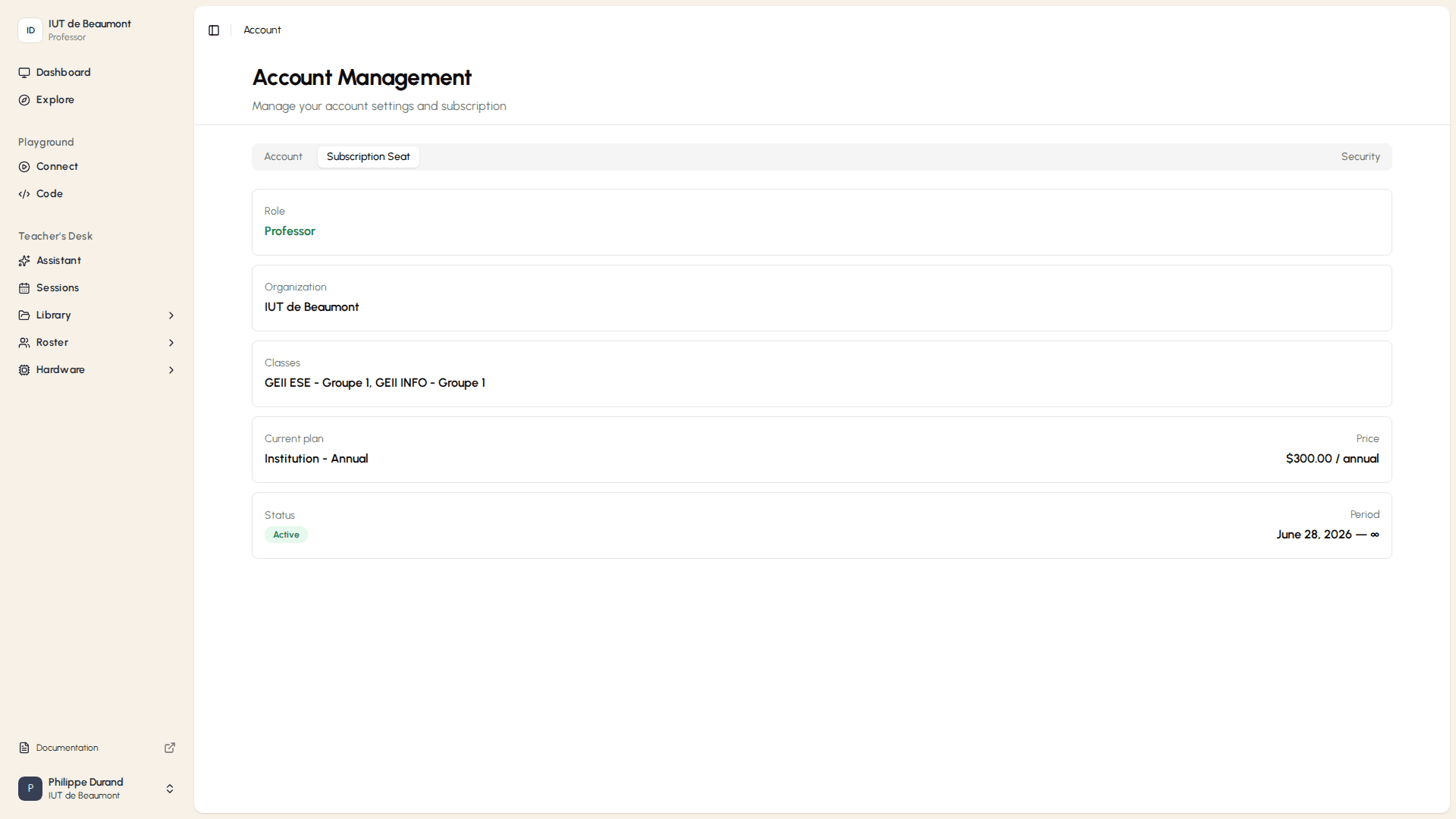
The tab displays the following read-only fields:
- Role: your current role in the organization (Professor)
- Organization: the organization you belong to.
- Classes: the classes you are currently assigned to, if any.
- Current plan: your organization's active subscription plan and its price.
- Status and Period: whether your subscription is active, and its start and end dates. A period ending in ∞ means the subscription has no set end date.
Switching Your Active Seat
If you hold multiple roles (for example, both Organization Admin and Professor), the Organization Seats section at the bottom of the tab lets you switch which seat you are currently using.
Under ACTIVE, your currently selected seat is shown with a filled radio button. Under AVAILABLE, any other seats assigned to your account are listed. To switch:
- Select the radio button next to the seat you want to use.
- Select Switch to selected seat.
How is this guide?