

Creating and Managing Labs
Build, organize, and publish lab experiments for your courses.
Labs are the core content you create for your students. Each lab has a description, an access level, and an outline made up of one or more pages. From the Labs page, you can create new labs, manage their visibility, and create sessions to deliver them to your students. To understand how labs fit into the broader content hierarchy, see Content Structure.
Opening the Labs Page
In the left sidebar, under Library, select Labs.
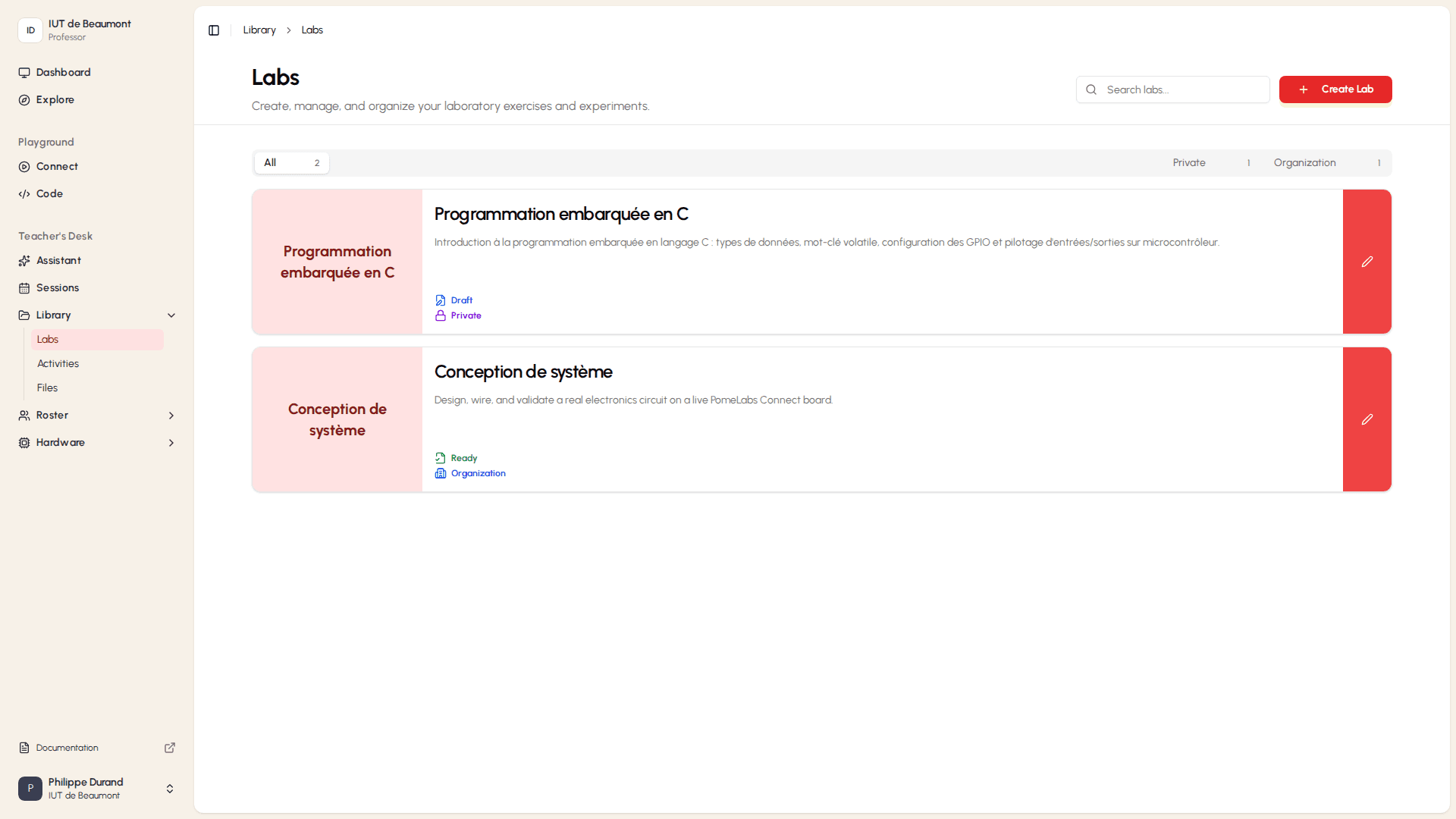
Each lab card shows:
- A thumbnail representing the lab's content.
- The lab's title and description.
- Its publishing status (Ready or Draft).
- Its access level (Public, Organization, or Private).
Select a lab's title or thumbnail to open its overview page, or select the pencil icon on the right edge of the card to edit its content.
Creating a New Lab
- On the Labs page, select + Create Lab. The Create New Lab wizard opens. A progress bar at the top of the wizard fills in as you move through its three steps.
Step 1: Add Basic Information
- In the Lab Title field, enter a name for the lab.
- In the Description field, enter a short description of what the lab covers.
- Select Next.
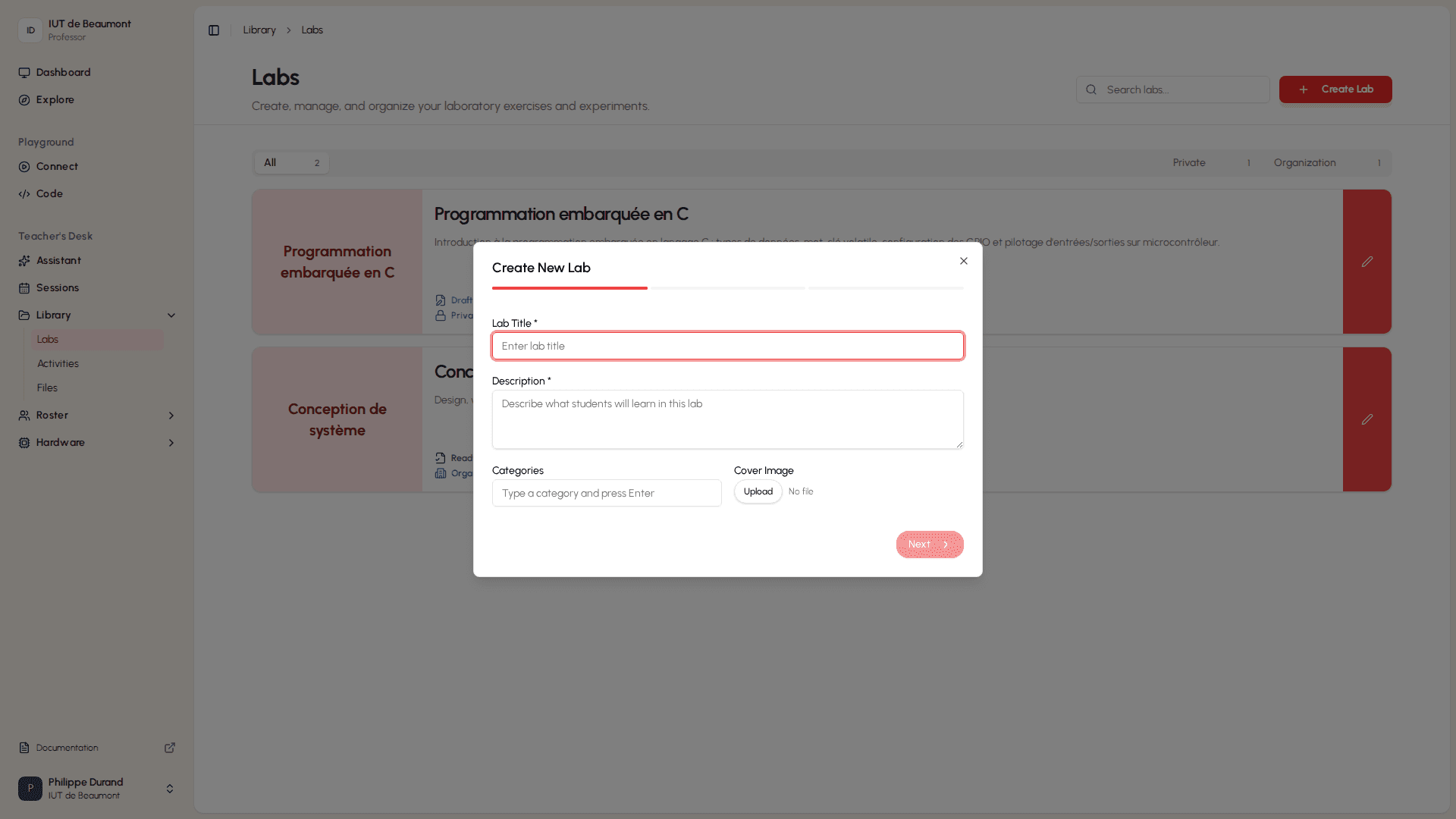
(optional) In the Category field, enter a category for the lab
(optional) Next to Cover Image, select Upload to add a cover image for the lab.
Step 2: Set the Access Level
- Under Access Level, select who can access the lab:
- Public: anyone can discover and access this lab.
- Organization: only members of your organization can access this lab.
- Private (Recommended): only enrolled students can access this lab.
- Select Next
Step 3: Review and Create
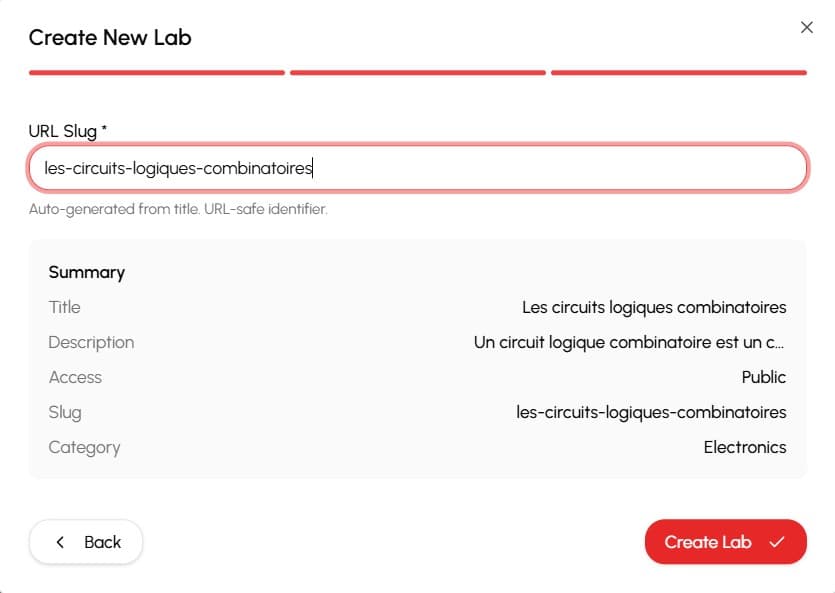
- In the URL Slug field, review the URL-safe identifier that was automatically generated from the lab's title. Edit it if needed.
- Review the Summary section, which lists the title, description, access level, slug, and category you set in the previous steps.
- Select Create Lab
Your new lab appears on the Labs page with a status of Draft.
Managing a Lab
On the Labs page, select a lab's title or thumbnail to open its overview page.
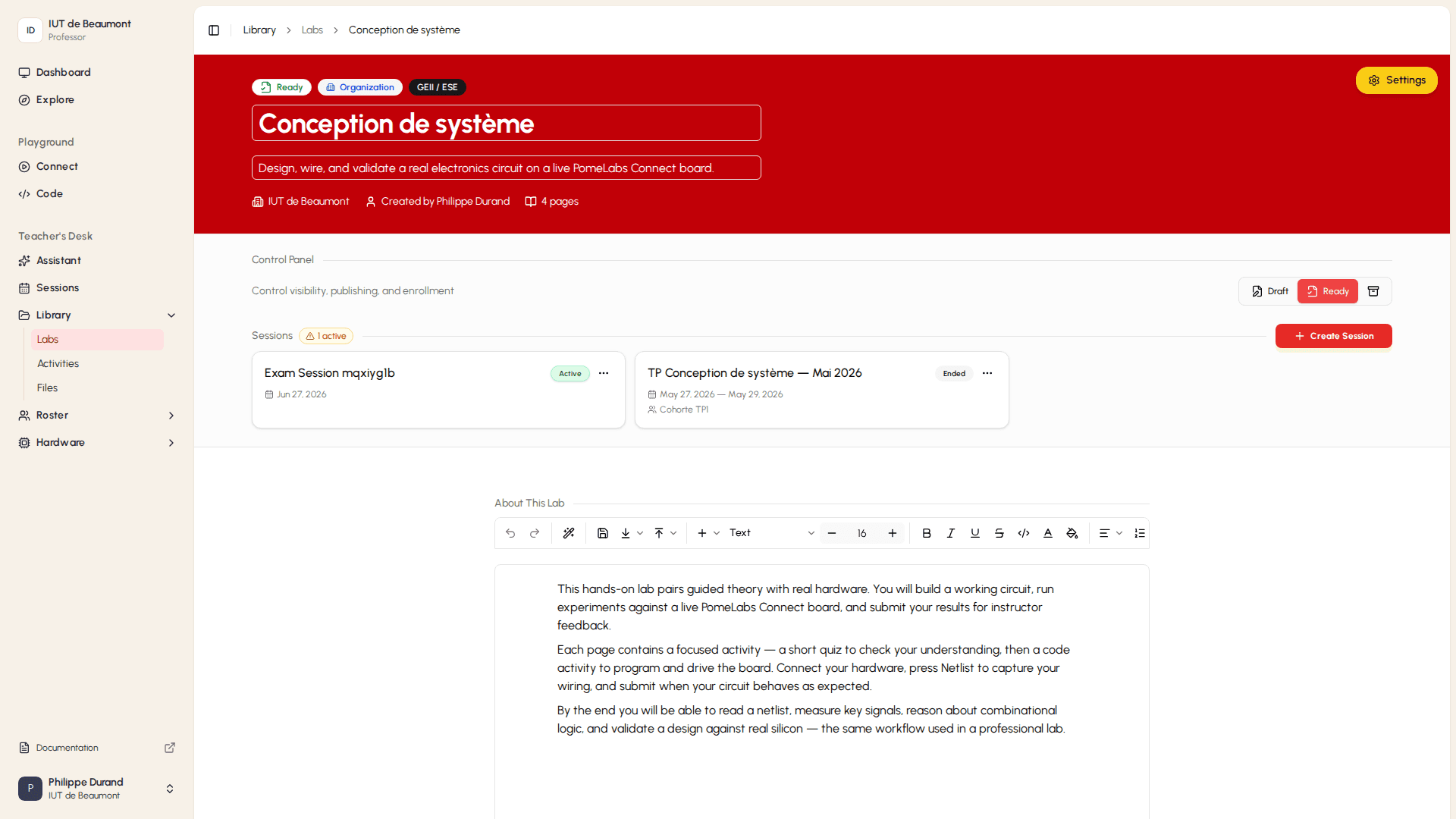
This page gives you access to:
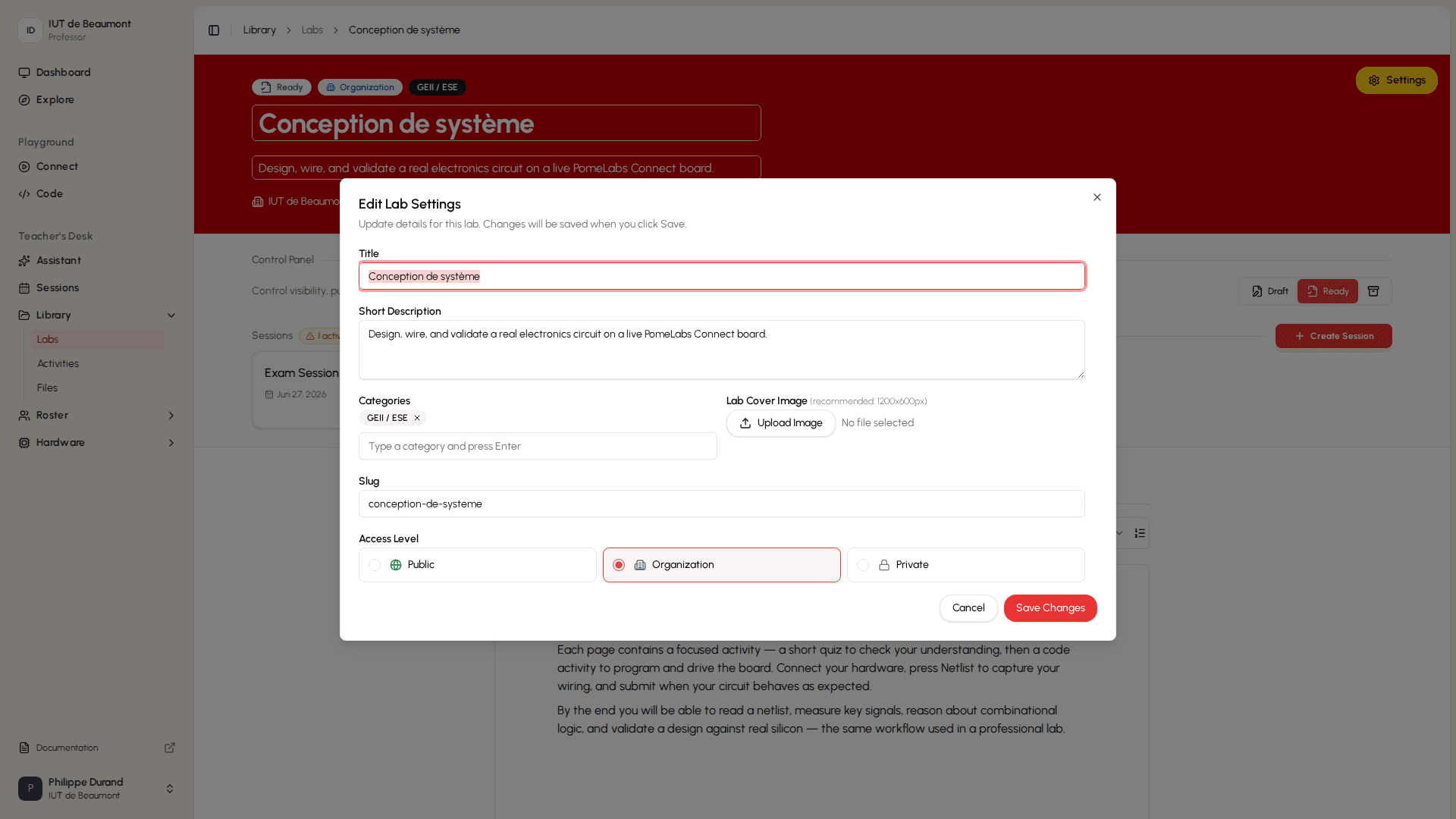
- Settings, where you can update the lab's title, description, access level, and category.
- The Control Panel, where you set the lab's publishing status to Draft, Ready, or archive it.
- The Sessions section, which lists any sessions created for this lab and lets you create new ones.
Adding Content to a Lab
To edit a lab's content, select the edit (pencil) icon on the lab's card on the Labs page. This opens the lab's content editor, where you can write the About This Lab description and build the Lab Outline.
Editing "About This Lab"
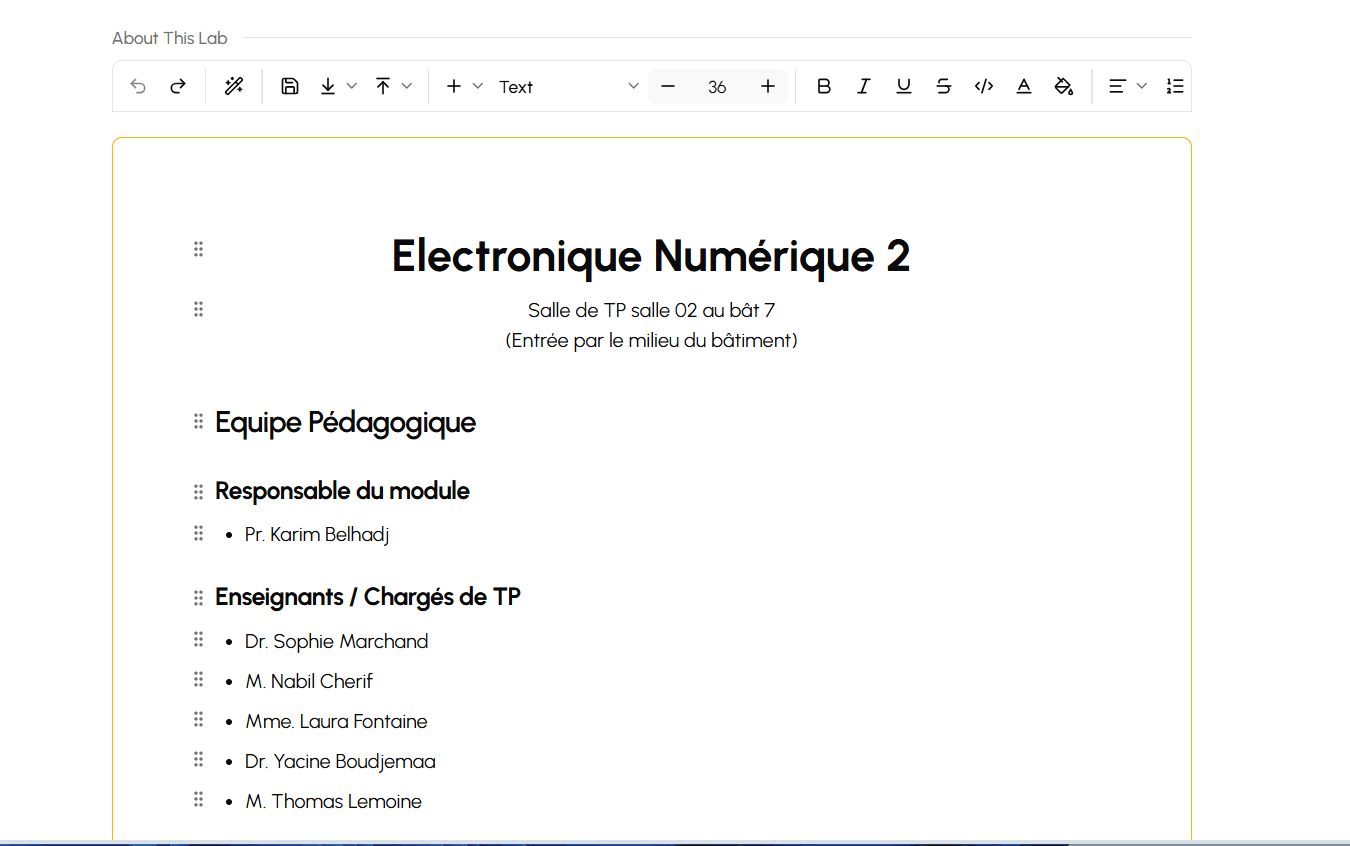
The About This Lab section is a rich text editor where you describe the lab — for example, the module name, location, and teaching team.
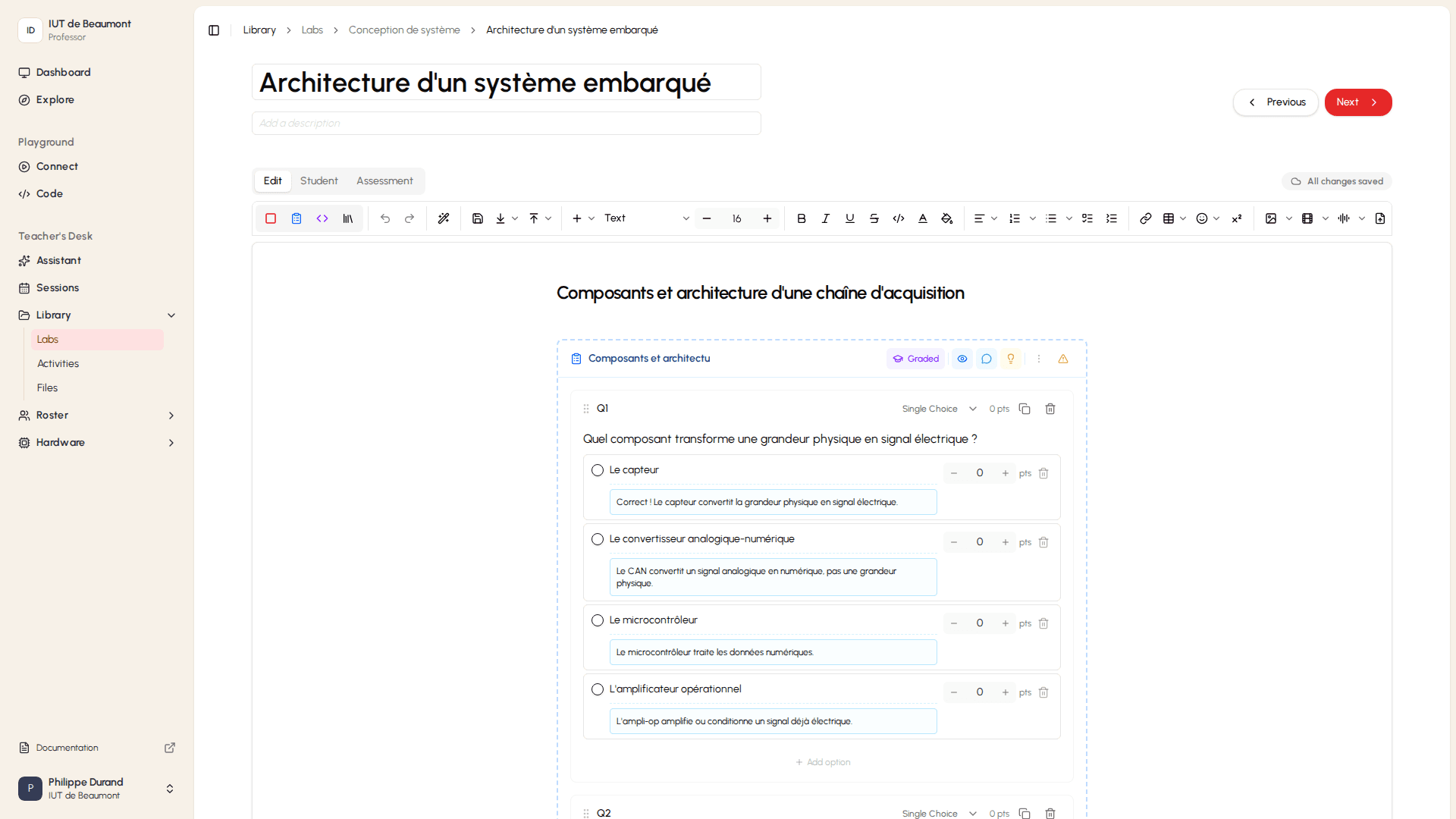
- Select inside the content area and start typing.
- Use the toolbar to format your text — for example, add headings, bold text, or bullet lists.
- Select Save changes when you're done.
For example, you can use headings and bullet lists to lay out a module's details and teaching team:
Adding Pages to the "Lab Outline"
Below About This Lab, the Lab Outline section lists the pages that make up the lab — for example, course content, exercises, or reference material.
- To reorder pages, use the up and down arrow icons on a page's row.
- To delete a page, select the trash icon.
- To edit a page's content, select the pencil icon.
- To add a new page, select Add new page.
Editing a Page
Selecting the edit icon on a page in the Lab Outline to add new content in the page or edit existing content.
- In the title field at the top, enter or update the page's title. This title is also shown in the Lab Outline.
- (Optional) Select Add a description to give the page a short description.
- Use Edit and Preview to switch between writing content and seeing how it will look to students.
- Use the toolbar and content area to add text, headings, lists, images, and diagrams, the same way as in the About This Lab editor. For a full reference of available formatting options and block types, see Authoring Tools.
- Use Previous and Next to move between pages in the Lab Outline
without leaving the editor.
Changes are saved automatically
To add interactive exercises to your pages, see Creating an Activity.
How is this guide?