

Hardware
View hardware kits, inspect modules, and manage kit bookings.
The Hardware section shows you every hardware kit available at your institution, lets you check what each kit contains and its current deployment status, and shows when kits are booked.
Opening the Hardware Overview
In the left sidebar, under Hardware, select Overview.
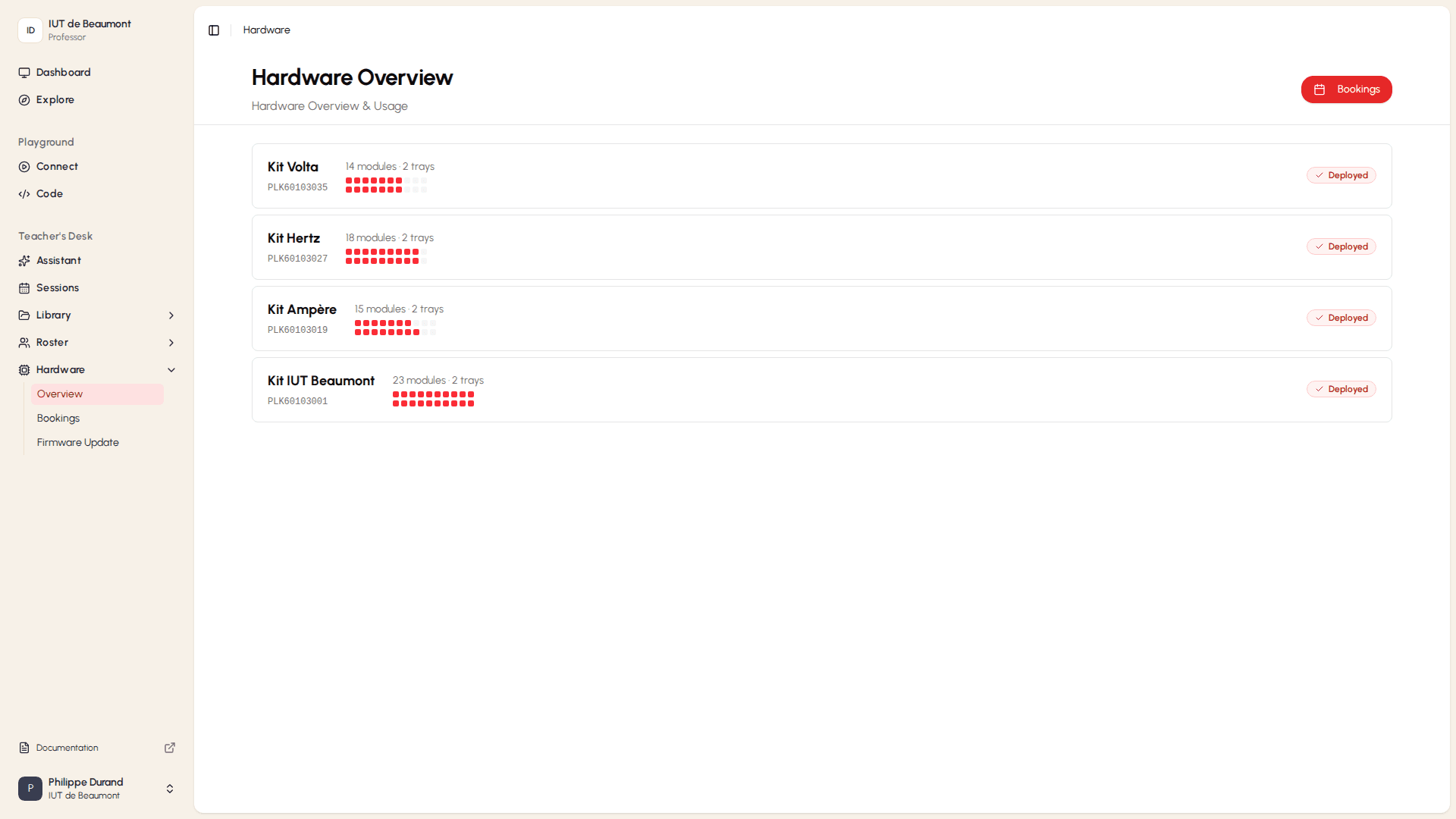
Each card shows:
- The kit's name and serial number.
- How many modules and trays it contains.
- A row of squares representing the kit's module slots: filled (red) squares are slots with a module installed, and empty squares are unused slots.
- The kit's status, such as Deployed.
Viewing Kit Details
- On the Hardware Overview page, select a kit's card. The Kit Detail page opens, showing the kit's composition and status.
At the top of the page:
- The dark header bar shows the kit's name, its Deployed status, and its serial number (starting with PLK).
Under TRAYS, each tray in the kit is shown as a grid of slots:
- A filled, red square represents a slot with a module installed. The short code on each square identifies the module type for example, NOD for a Node Voltage, NOT for a NOT Gate, PUS for a Push Button, DFL for a D Flip-Flop, PRO for a Probe, XOR for an XOR Gate, RGB for an RGB LED, and MAS for the Master module.
- An empty, dotted square represents an unused slot.
Scroll down to see the full module list for each tray, and the kit's accessories.


For each tray, you can see:
- How many of its slots are in use (for example, 23/64 slots).
- Its deployment status and serial number.
- A list of every module installed in the tray, with the module's type and serial number.
The ACCESSORIES section lists any additional equipment that comes with the kit, such as cables, along with the quantity and condition of each item.
Viewing Hardware Bookings
In the left sidebar, under Hardware, select Bookings — or select the Bookings button from the Hardware Overview page.
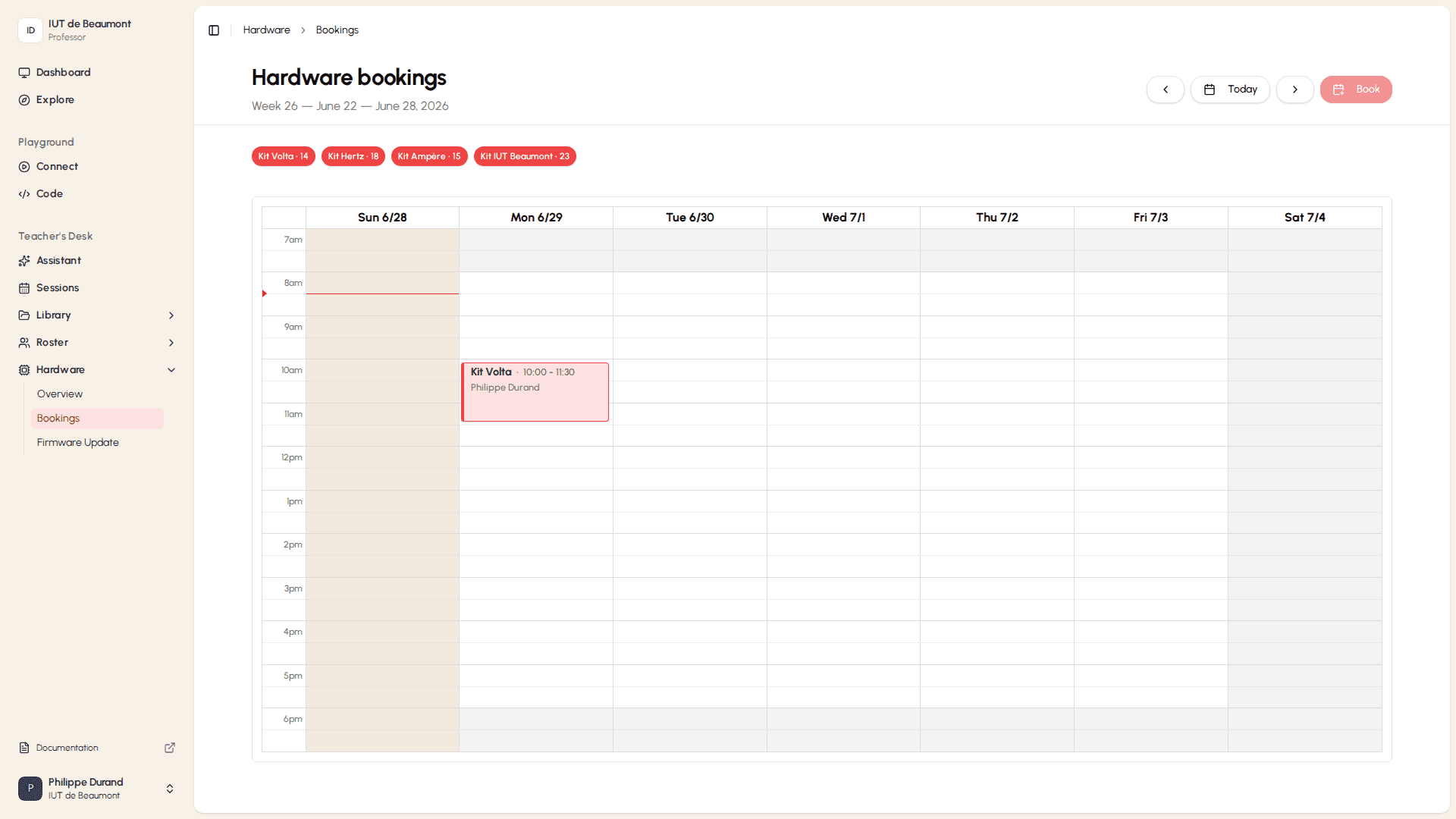
- Use the arrows, or select Today, to move between weeks.
- Select Book to reserve a kit for a session.
- The calendar shows existing bookings across the week, organized by hour and day.
How is this guide?