

Authoring Tools
Use the built-in content editor to format text, insert blocks, and manage lab content.
PomeLabs includes a built-in content editor that you can use when working within labs. This guide covers the toolbar controls, text formatting options, available block types, and content actions such as saving, importing, and exporting.
The Editor Toolbar
The toolbar appears at the top of the content area whenever you are working inside a lab page. It provides quick access to all formatting and content management functions across two rows of controls.
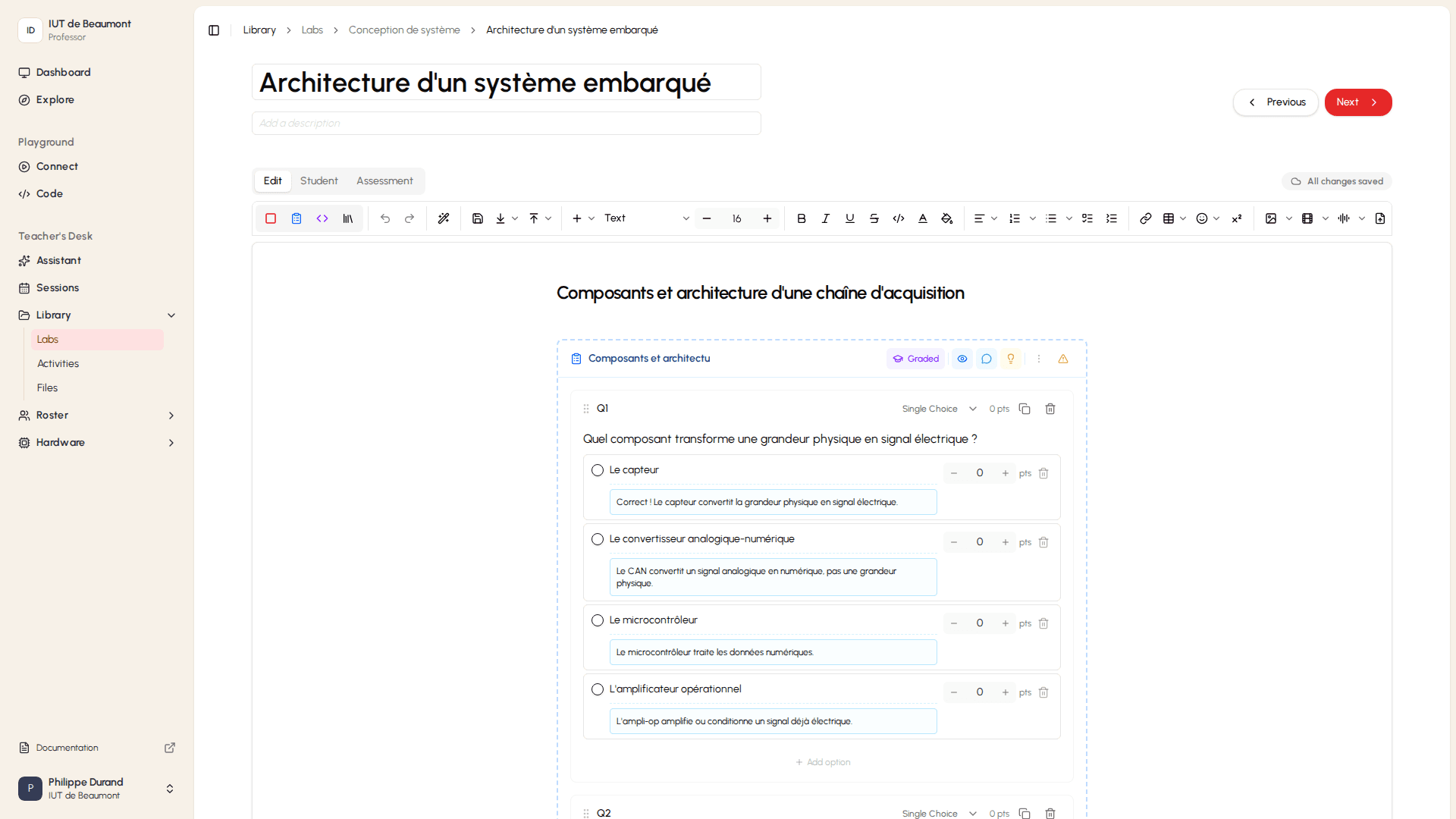
- Save: Saves your current work. A Save button is also available at the bottom-right of the editor.
- Insert: Opens the block insertion menu, where you can add new content blocks to the page.
- Export: Exports the current page content to an external file.
- Import: Imports content from an external file into the current page.
- Undo (⌘Z / Ctrl+Z): Reverses the most recent editing action.
- Redo (⌘Y / Ctrl+Y): Reapplies an action that was previously undone.
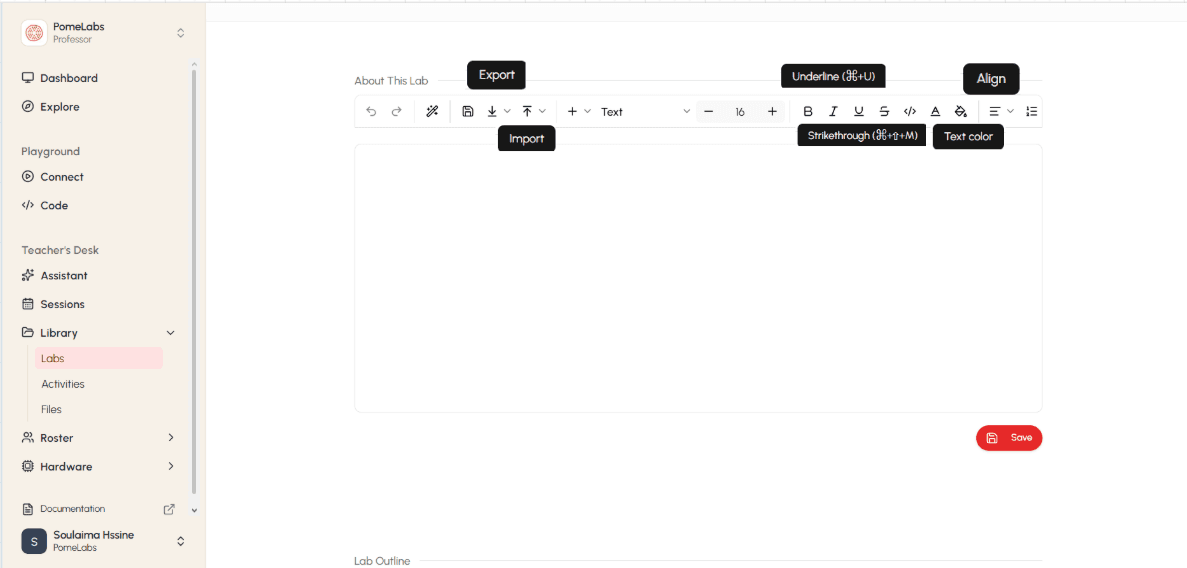
- Bold (⌘B): Applies bold weight to the selected text.
- Italic (⌘I): Applies italic styling to the selected text.
- Underline (⌘U): Underlines the selected text.
- Strikethrough (⌘⇧M): Draws a line through the selected text.
- Code (⌘E): Formats the selected text as inline code.
- Text color: Changes the foreground color of the selected text.
- Background color: Changes the highlight color behind the selected text.
- Align: Sets the horizontal alignment of the current paragraph (left, center, right, or justified).
- Font size: Adjusts text size using the − and + controls, or by typing a value directly.
- Text style: Applies a paragraph style to the current block (Text, Heading 1, Heading 2, or Heading 3).
- Lists: Toggles the current block into a bulleted or numbered list.
Contextual Toolbar
When you select text, a small toolbar appears just above the selection. It provides the most commonly used formatting options inline, without reaching for the main toolbar:
- Bold, Italic, Underline, Strikethrough, Code
- Text color and Background color
- Turn into — Converts the current block to a different block type (for example, from a paragraph to a heading or callout).
- AI commands — Opens the AI assistant to rephrase, summarize, or expand the selected text.
Inserting Content Blocks
Content in the PomeLabs editor is organized into blocks, discrete units such as paragraphs, headings, lists, quizzes, and equations. You can insert a new block at any position on the page.
Using the / Command
The fastest way to insert a block is to type a forward slash ( / ) on a new line. The block insertion menu opens, listing all available block types by category. Type a keyword to filter the list.
Using the Insert Button
You can also select the Insert button in the top row of the toolbar to open the same block insertion menu at your current cursor position.
Available Block Types
The block insertion menu groups all available elements into three categories.
Basic Blocks
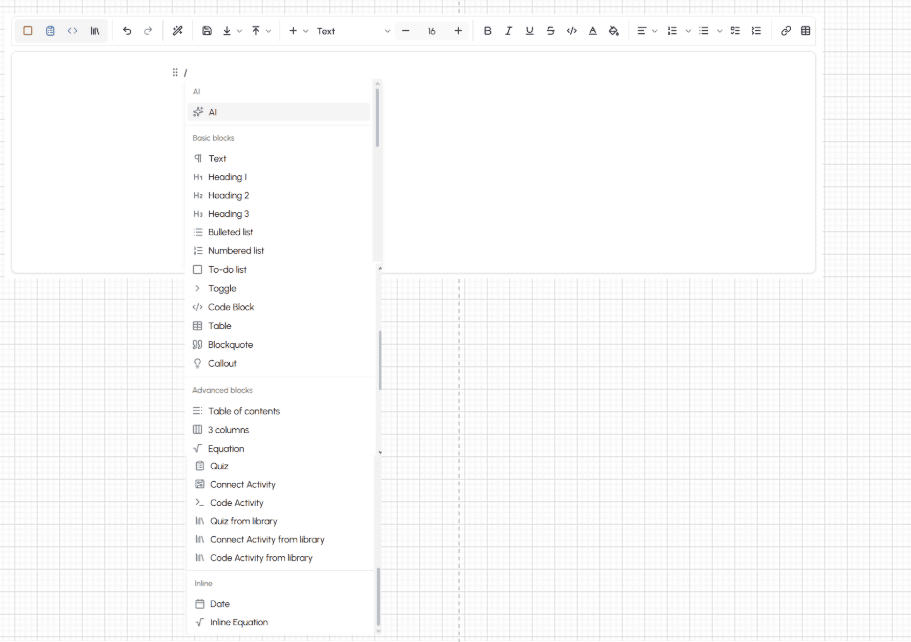
Text: A standard paragraph of body text. The default block type when you begin typing. Heading 1, Heading 2, Heading 3: Section headings at decreasing levels of hierarchy. Bulleted list: An unordered list using bullet points. Numbered list: An ordered list using sequential numbers. To-do list: A checklist with checkboxes. Toggle: A collapsible block that hides content until the user clicks to expand it. Code Block: A formatted block for displaying multi-line code in monospace font. Table: A structured table with editable rows and columns. Blockquote: An indented block for highlighting a citation or important passage. Callout: A highlighted notice box for drawing attention to key information.
Advanced Blocks
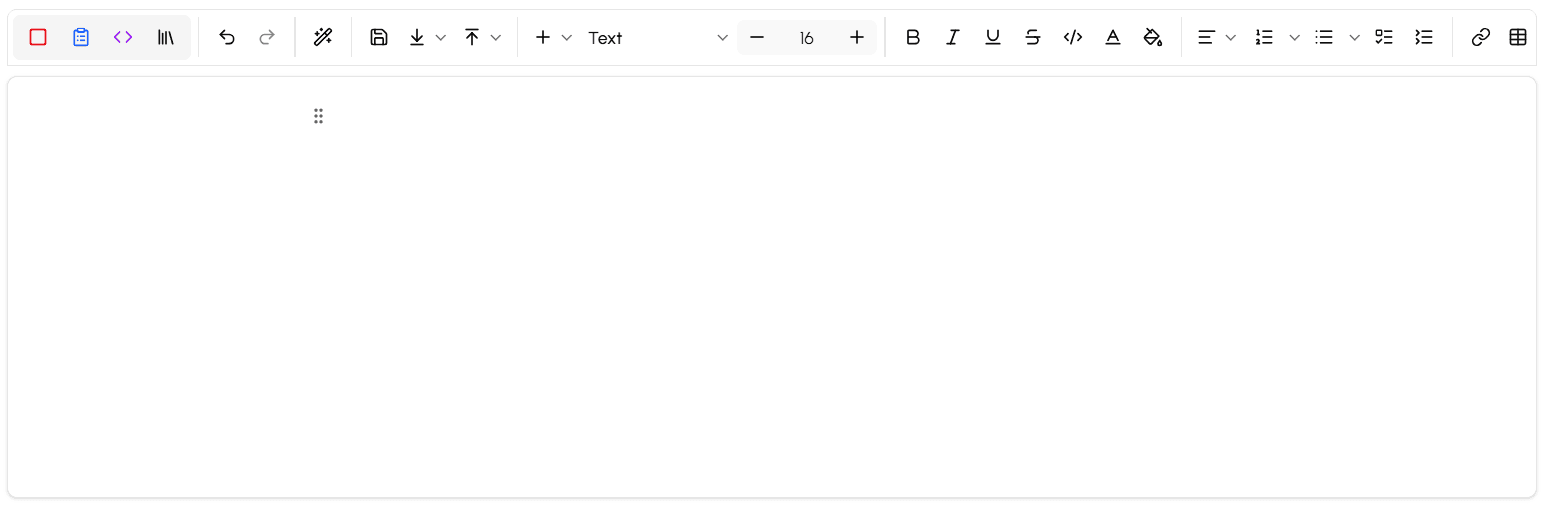
Table of contents: Automatically generates a navigable table of contents from headings on the page. 3 columns: Splits the page into a three-column layout for side-by-side content. Equation: Inserts a mathematical equation block using LaTeX notation. Quiz: Inserts a new quiz activity (Single Choice, Multi Select, and so on). See Creating an Activity for details. Connect Activity: Inserts an interactive circuit or connectivity activity. Code Activity: Inserts an interactive coding activity where you can write and run code. Quiz / Connect / Code Activity from library: Inserts a pre-built activity from your institution's activity templates library.
Advanced blocks such as Quiz, Connect Activity, and Code Activity are primarily authored by professors. As a student you will encounter them in labs but will not typically need to insert them yourself.
Inline Elements
Date: Inserts a formatted date reference inline within a line of text. Inline Equation: Inserts a mathematical expression inline within a paragraph using LaTeX notation.
AI Assistant
The editor includes an integrated AI assistant that can help you work with text content. You can access it in two ways:
- Type / on a new line and select AI at the top of the block insertion menu.
- Select any text and choose AI commands from the contextual toolbar that appears above the selection.
The AI assistant can rephrase, expand, summarize, or otherwise transform selected text within the editor. For more on the AI assistant's capabilities, see Using AI Assistant.
Title
Always review AI-generated suggestions carefully before accepting them. Verify accuracy before using AI output in an academic context.
How is this guide?