

Managing Users
Add, remove, and manage student and staff accounts in your organization.
The Students and Staff pages let you manage everyone in your organization. Students are the learners enrolled in your classes; staff are the professors. Both pages share the same layout: a searchable table with a name, email, and role for each person, an Add button to invite new members, and a ... actions menu on each row.
Managing Students
Opening the Students Page
In the left sidebar, under Organization, select Students.
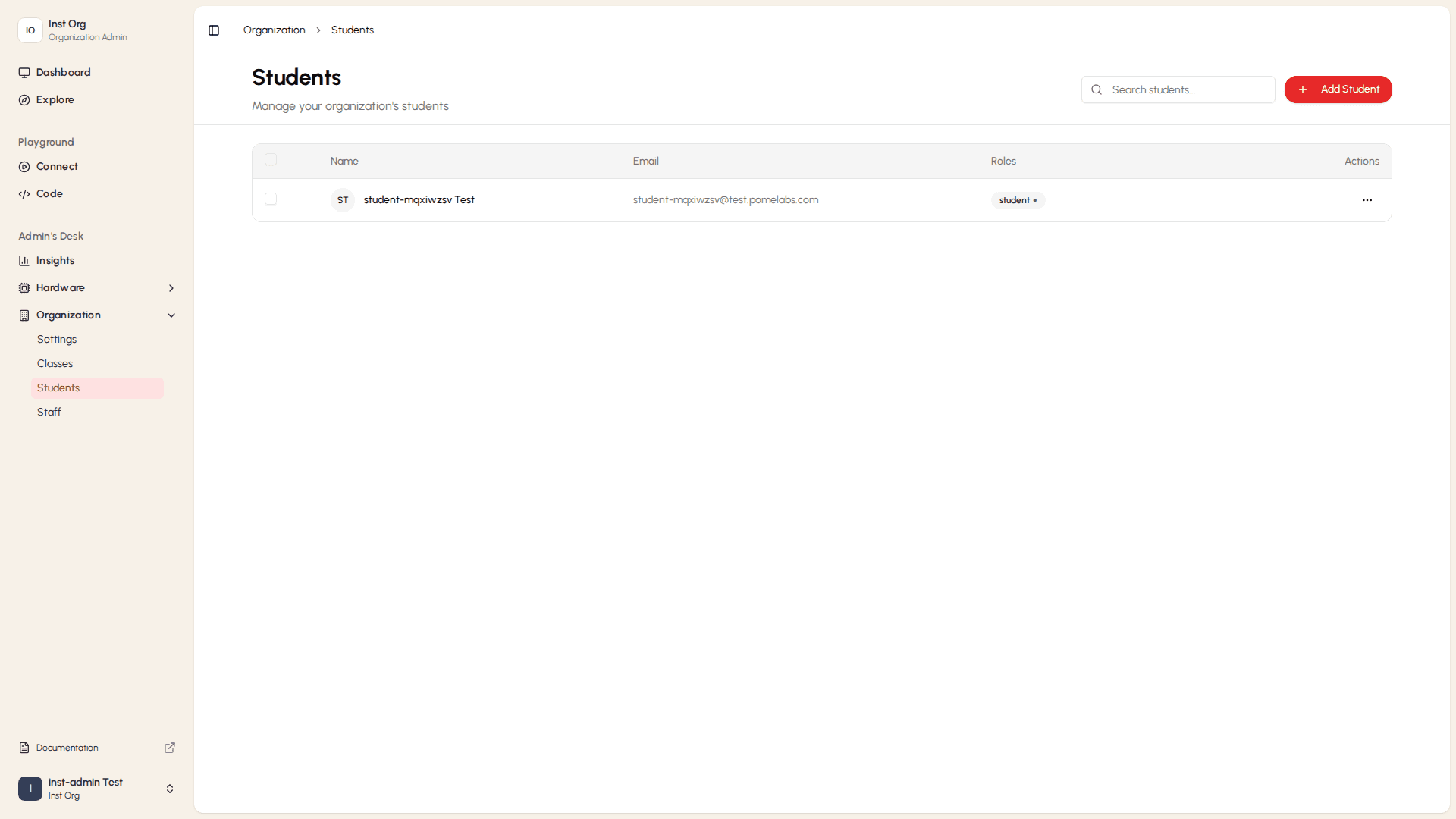
- Each row shows the student's name, email address, assigned roles, and an actions button. Use the Search students... field to filter the list by name or email. Select the checkbox on any row, or the checkbox in the header to select multiple students at once for bulk actions.
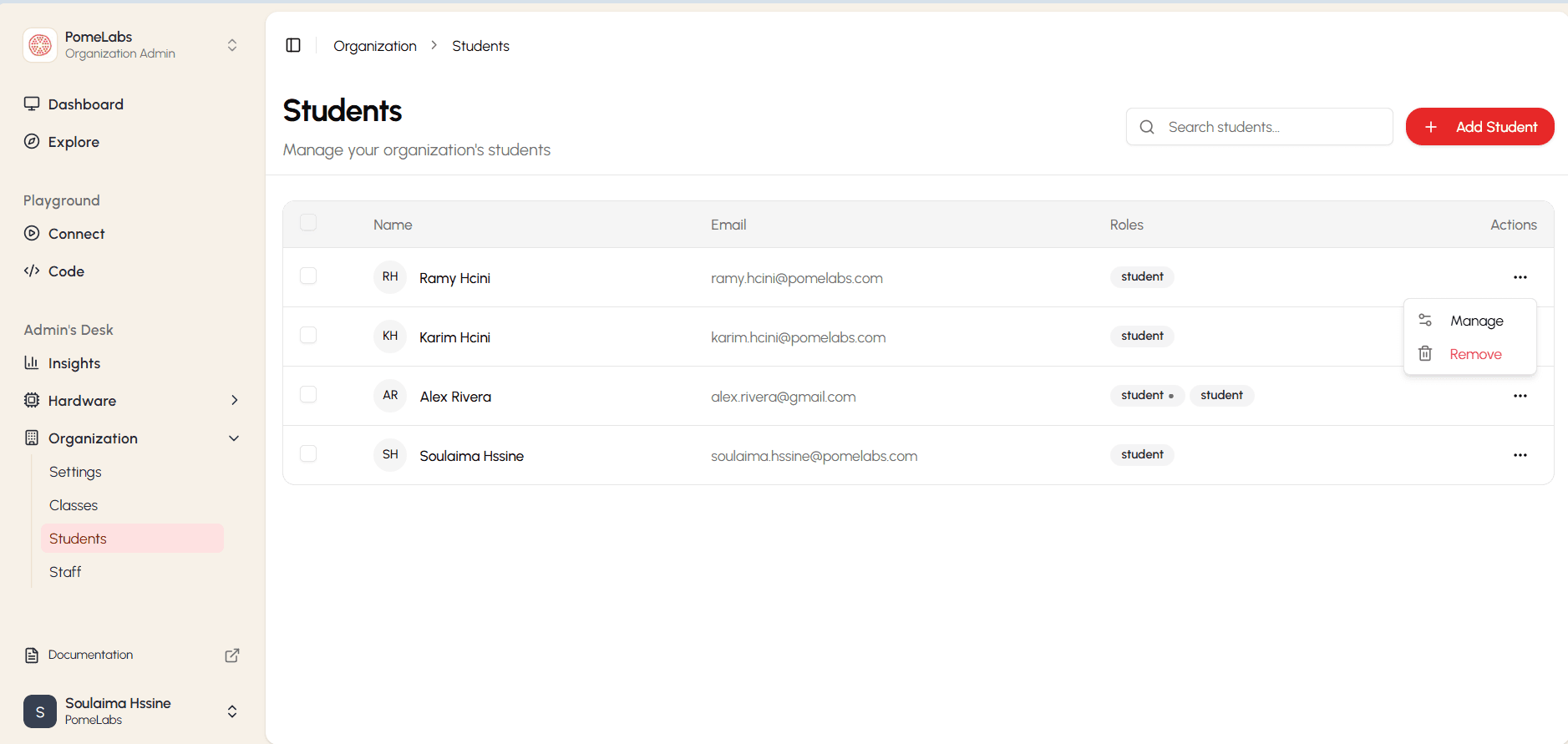
- The actions button contains two options:
- Remove: Deletes that student from the list.
- Manage: Opens a panel where you can edit the student's information details (class, email).
Adding a Student
To add a new student:
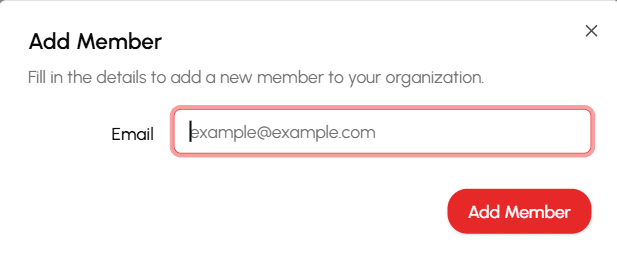
- Select + Add Student.
- Fill in the student's email.
- Save.
Managing Staff
Opening the Staff Page
In the left sidebar, under Organization, select Staff.
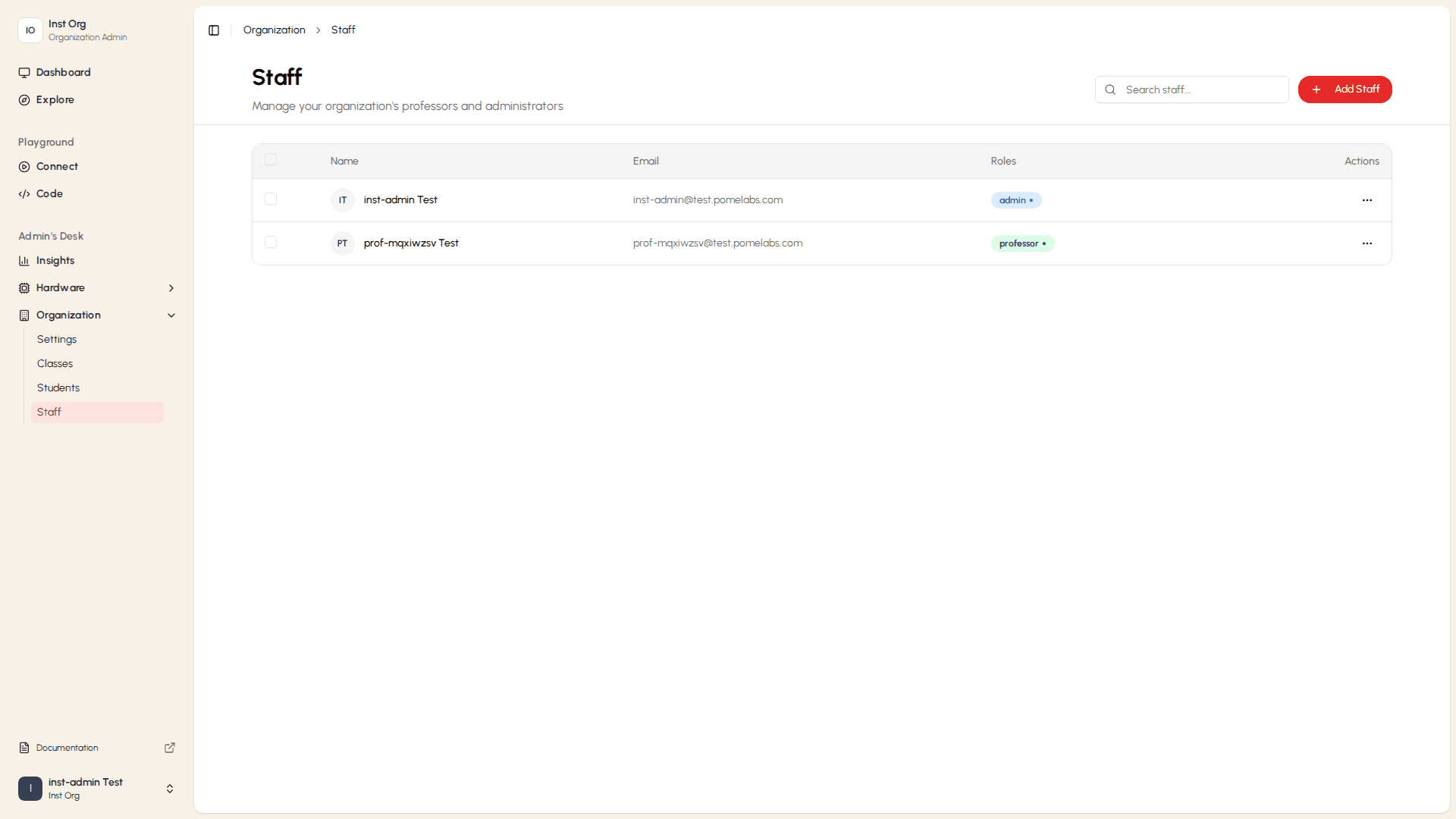
Each staff member's row shows their name, email address, and roles. A person can hold multiple roles at once, for example: admin and professor shown as separate colored badges:
- Admin (blue badge): Can access the Admin's Desk, manage the organization's settings, users, classes, and hardware.
- Professor (green badge): Can create labs, sessions, and activities, and manage their own classes through the Teacher's Desk.
- A dot on a badge indicates that the role is currently active.
Managing an Existing Staff Member
Select the ... button on a staff member's row to open the actions menu.
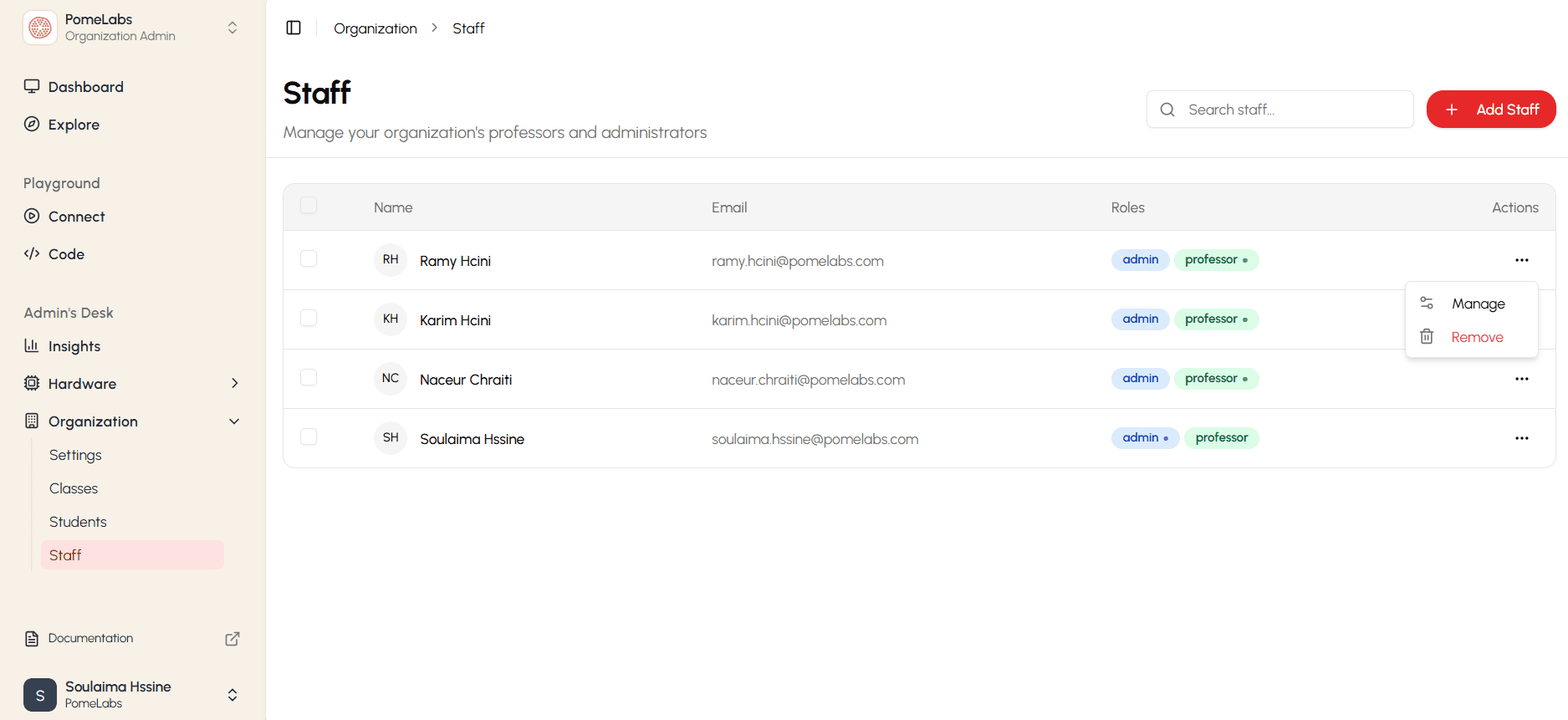
The menu has two options:
- Manage: opens the Manage Seats dialog, where you can update the staff member's roles and class assignments.
- Remove: removes the staff member from your organization.
Managing a Staff Member's Roles and Classes
Select ... on a staff member's row, then select Manage. The Manage Seats dialog opens.
- Under Roles, check or uncheck the roles you want to assign to this staff member:
- professor: grants access to the Teacher's Desk to create and manage labs, sessions, and activities.
- assistant: grants a limited teaching role.
- admin: grants access to the Admin's Desk to manage the organization.
- Under Classes, check the classes this staff member should be assigned to. A staff member can be assigned to multiple classes at once.
- Select Save Changes.
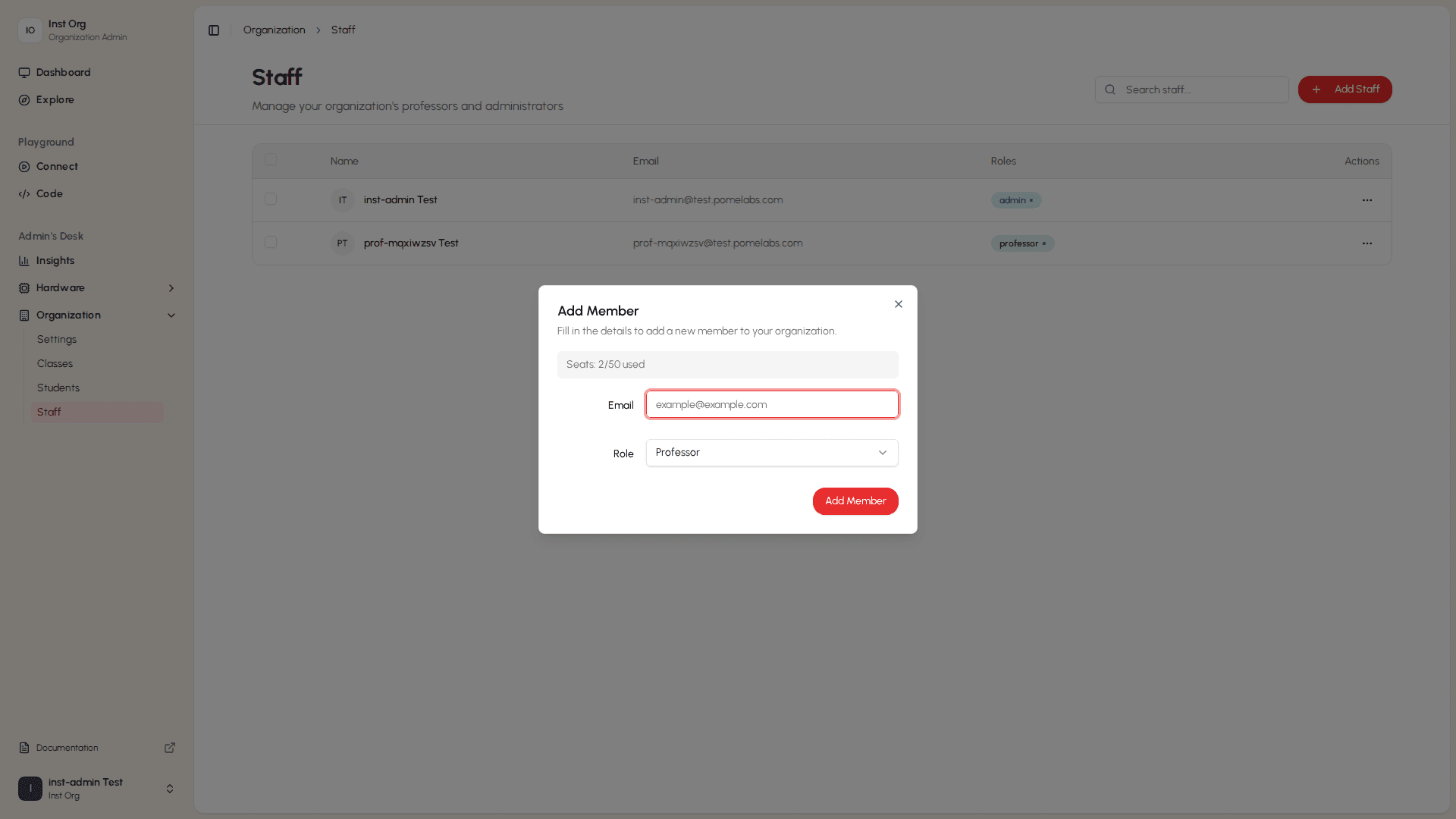
Adding a Staff Member
To add a staff member:
- Select + Add Staff.
- Fill in the staff member's email(s) and assign their role(s).
- Select Save.
How is this guide?