

Managing Your Account
View and update your profile, subscription, and security settings on PomeLabs.
The Account Management page lets you view and update your personal profile information and review the details of your institutional subscription. This guide explains how to access account settings and what each section contains.
Accessing Account Management
Your account settings are available from any page on the platform through the user menu in the sidebar.
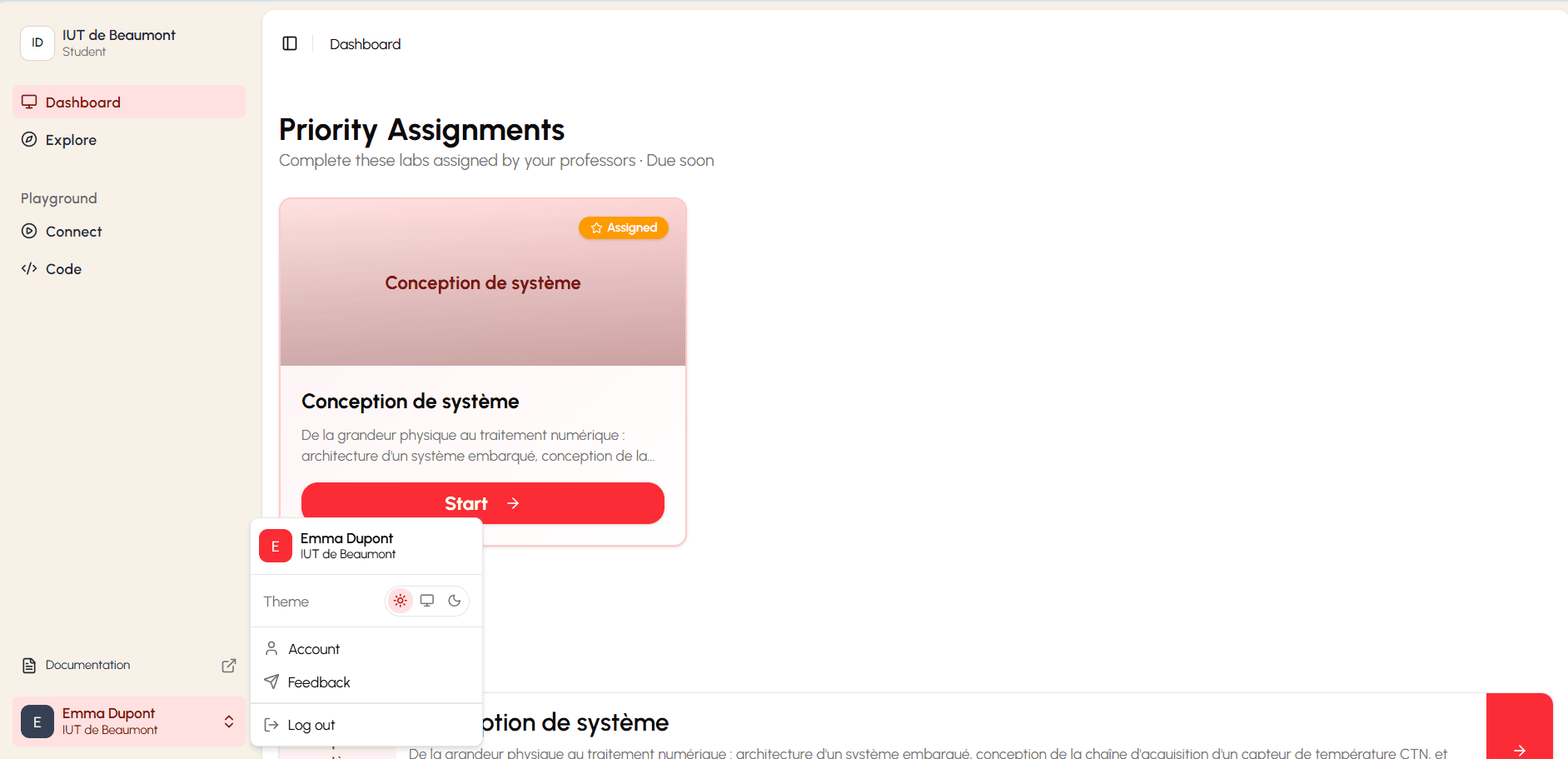
- Select your name at the bottom-left of the sidebar. The account menu opens.
- Select Account. The Account Management page opens.
The Account Interface
The Account Management page is organized into three tabs: Account, Subscription Seat, and Security.
Account Tab
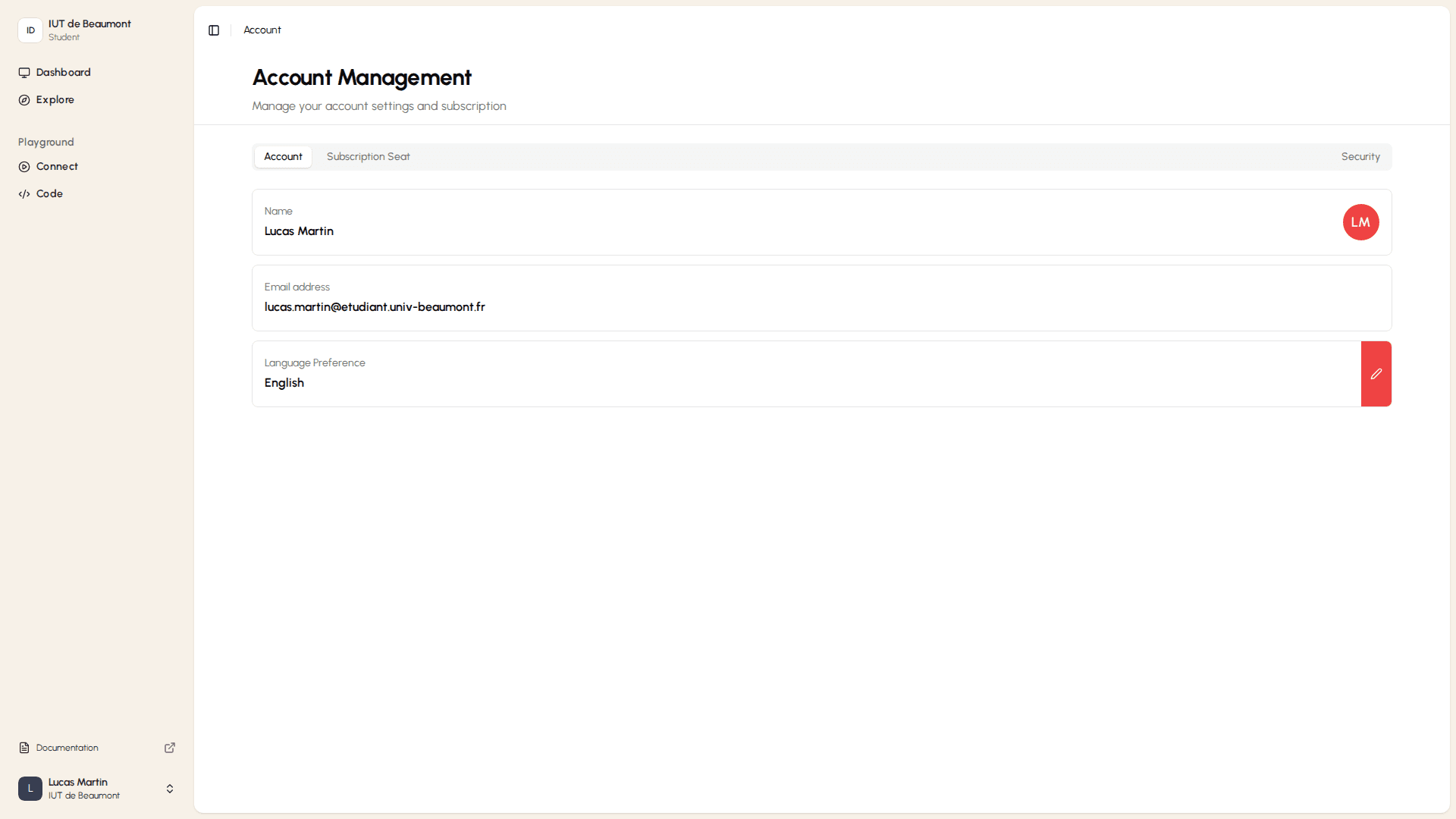
The Account tab displays your core profile information. Each field appears in its own row, with the field name above and the current value below:
- Name: Your full display name on the platform.
- Email address: The institutional email address associated with your account.
- Language Preference: The interface language currently set for your account.
Subscription Seat Tab
The Subscription Seat tab shows a read-only summary of your institutional access. This information is managed by your institution's administrator and cannot be changed by students:
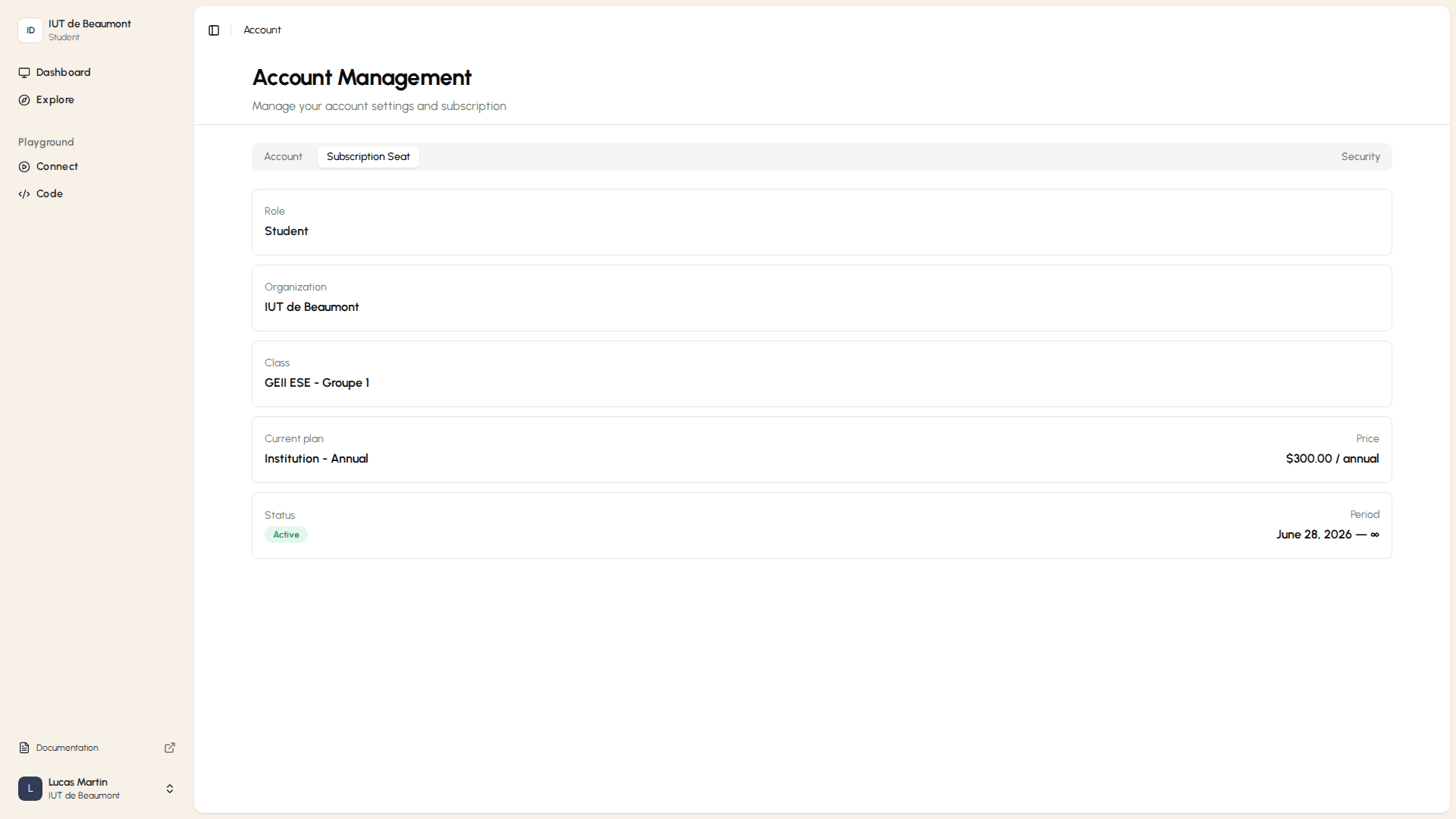
- Role: Your account role on the platform (Student).
- Organization: The name of the institution that manages your access.
- Class: The class or group you are enrolled in.
- Current plan: The subscription plan held by your institution and its billing period.
- Status: The current state of your seat. An Active status confirms your access is valid.
- Period: The validity period of your subscription, shown as a start date and end date.
If any of these details appear incorrect — such as the wrong group or an inactive status — contact your institution's administrator. Students cannot modify subscription seat information.
Security Tab
The Security tab contains options for managing your password and authentication settings. Use this tab if you need to update your password.
Account Information
Updating Your Language Preference
The Language Preference is the only profile field students can edit directly. To change it:
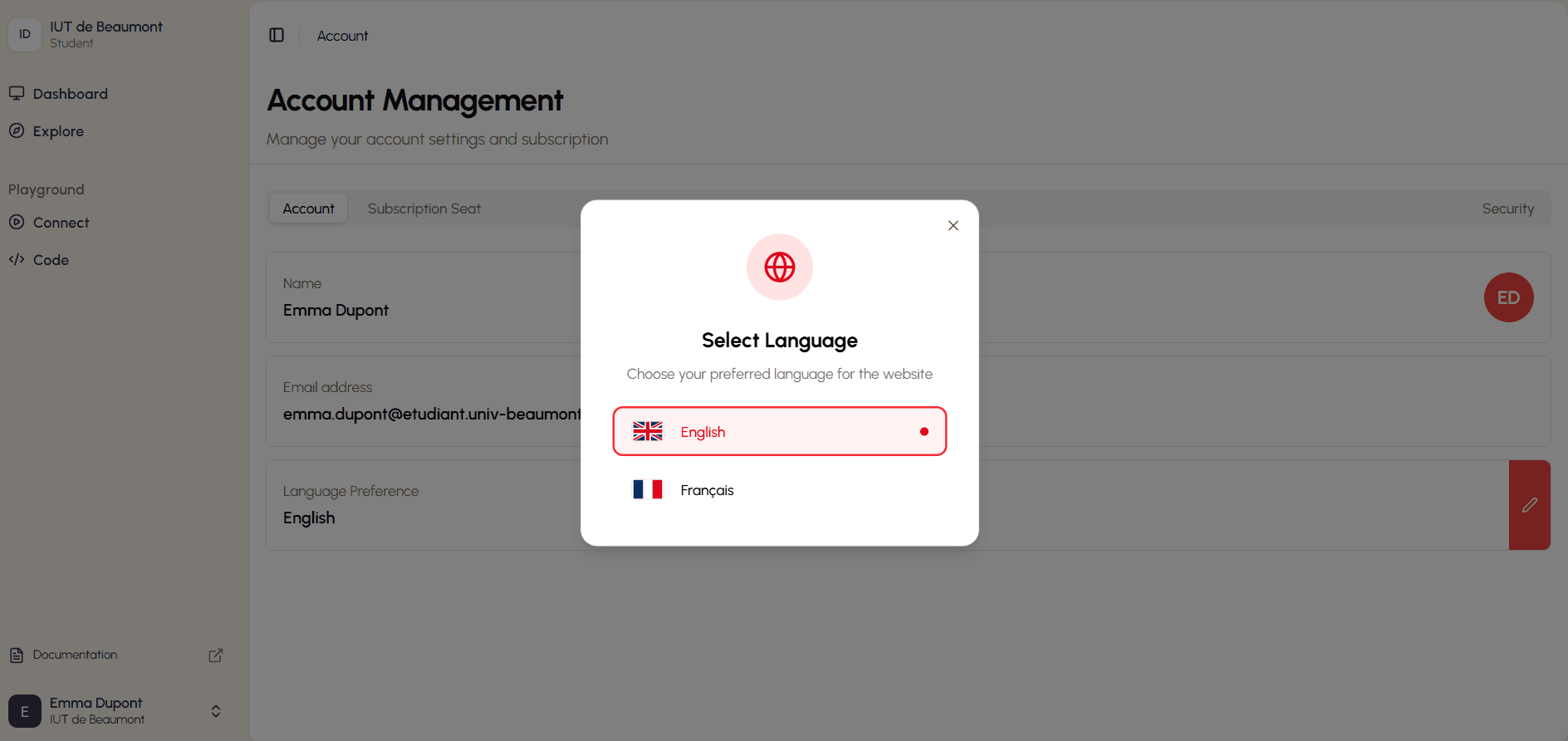
- On the Account tab, select the pencil icon at the right of the Language Preference row. A language selection dialog opens.
- Select your preferred language. The available options are English and Français.
- The selection is applied immediately and the dialog closes automatically.
Note: Changing your language preference updates the platform interface language. Lab content created by your institution may remain in its original language regardless of this setting.
Viewing Your Subscription Details
To check your subscription status, group assignment, or plan details, select the Subscription Seat tab on the Account Management page. All information on this tab is read-only.
How is this guide?