

Getting Started
Sign in to PomeLabs and explore your student Dashboard.
Welcome to PomeLabs! This guide walks you through signing in to your account and introduces you to your Dashboard, the central hub for accessing your lessons, assignments, and tools.
Signing In to PomeLabs
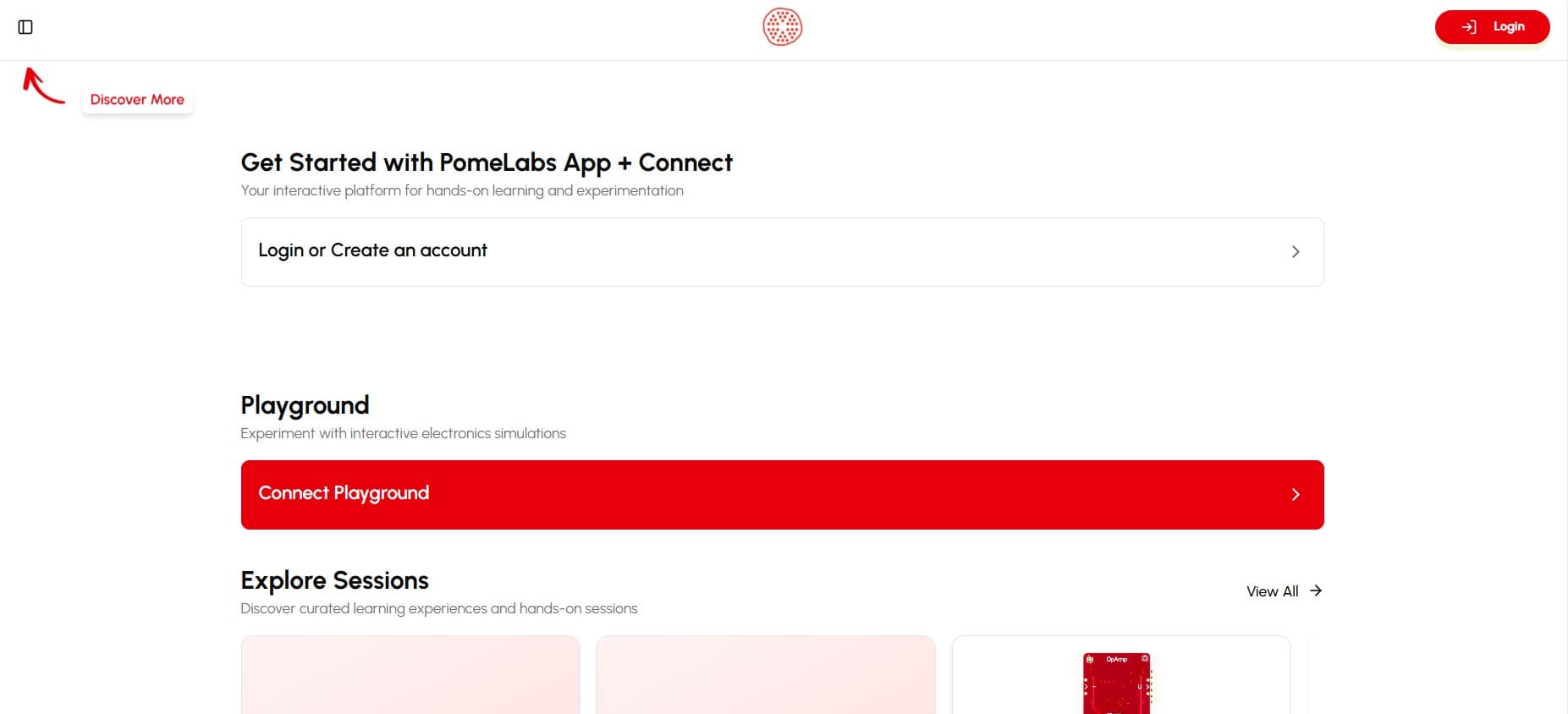
You can sign in to PomeLabs from your web browser using your username or institutional email address.
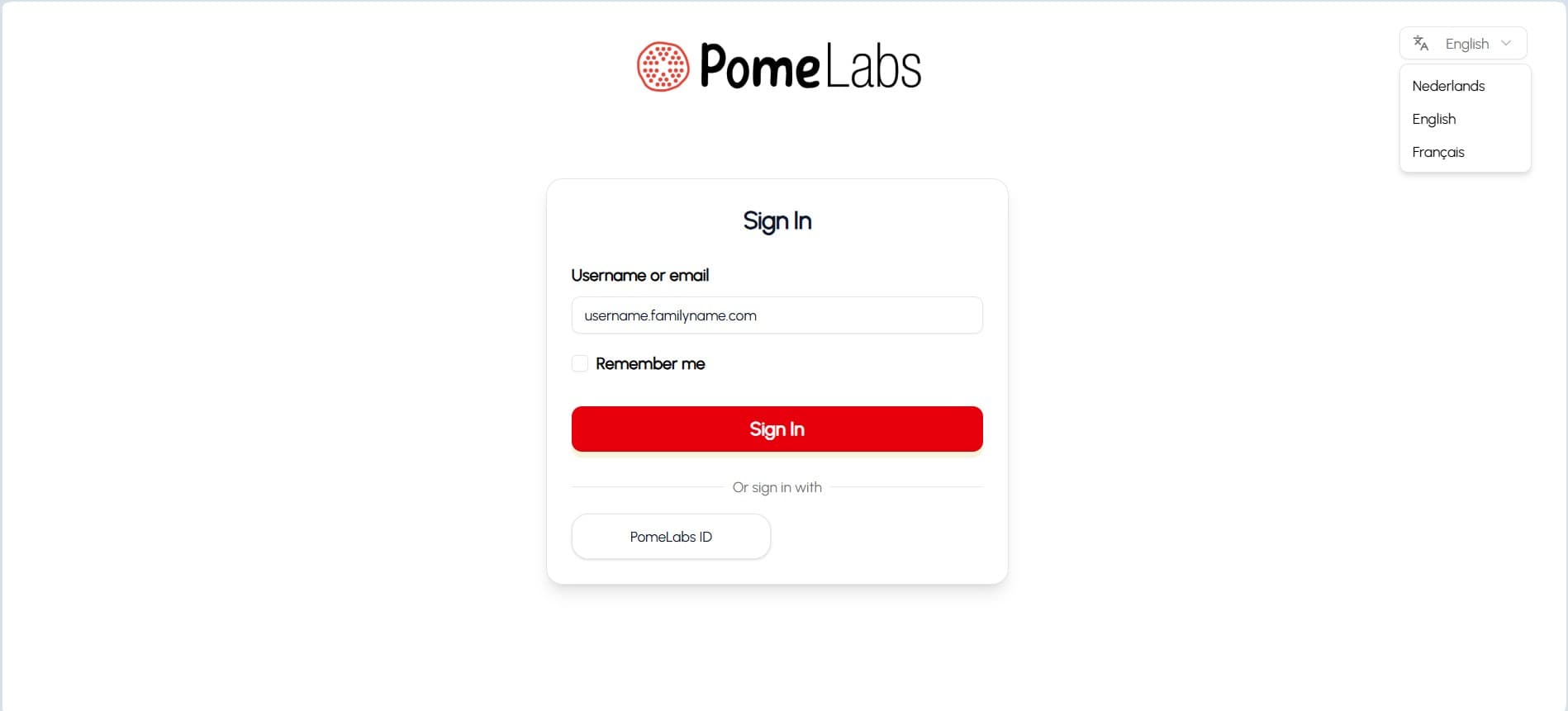
- Go to the PomeLabs sign-in page. The Sign In page opens.
- In the Username or email field, enter your PomeLabs username or institutional email address.
- (Optional) Select Remember me to stay signed in on this device.
- Select Sign In.
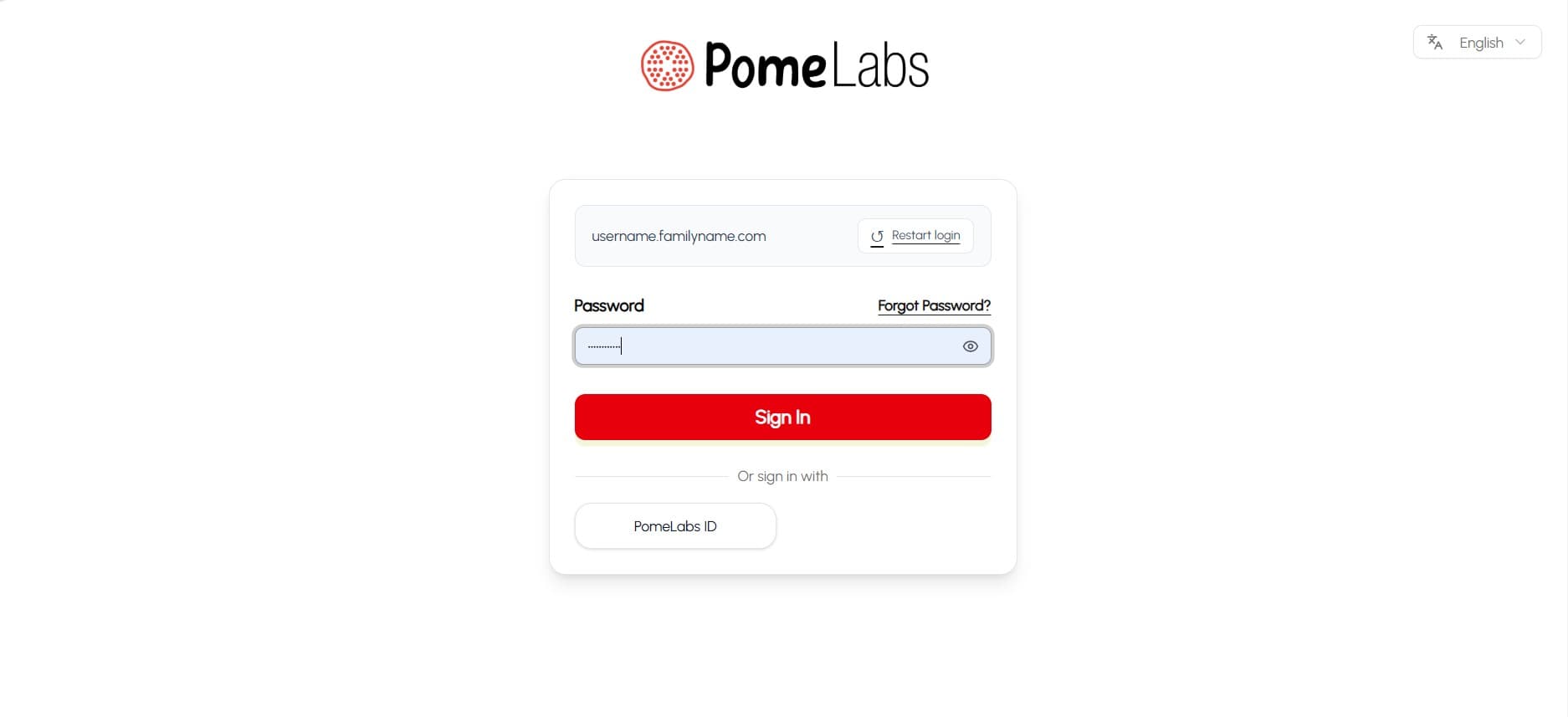
- On the next screen, enter your password in the Password field.
- To check the password you typed, select the eye icon on the right of the field.
- If you forgot your password, select Forgot Password?.
- If you entered the wrong username or email, select Restart login to go back to the previous screen.
This step may look different depending on your organization's configuration. If your organization uses Single Sign-On (SSO), you will be redirected to your organization's login page instead.
- Select Sign In to access your account. Your Dashboard opens.
Your account credentials are provided by your institution. If you have not received them, contact your professor or institution's administrator.
Interface Overview
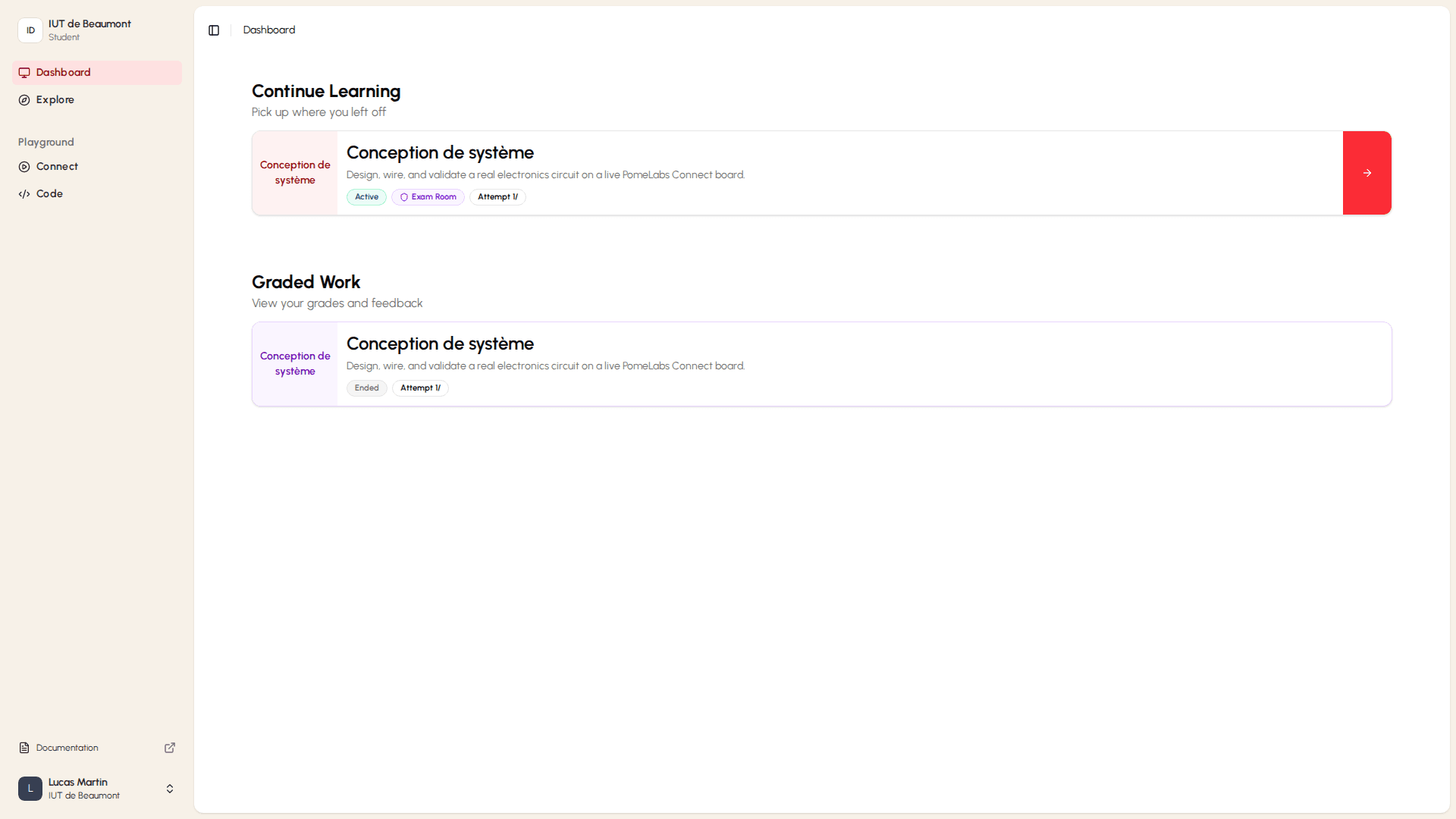
After you sign in, the app opens to your Dashboard — your personal home page on PomeLabs, showing your most urgent assignments and your in-progress learning content.
Navigating the Sidebar
The sidebar on the left gives you access to the following areas:
- Dashboard returns you to this overview page from anywhere in the app.
- Explore lets you browse all available sessions and labs published by your institution and by PomeLabs.
- Playground contains interactive tools for hands-on practice: Connect (link hardware to PomeLabs), Code (write and run code), Tutor, and Hardware.
- Documentation opens the PomeLabs help center in a new tab.
To collapse or expand the sidebar, select the panel icon at the top of the page. To access your account settings or log out, select your name at the bottom of the sidebar.
Priority Assignments
This section displays labs assigned to you by your professors that are due soon. Each assignment is shown as a card labeled Assigned. Select the Start button on a card to open that lab immediately.
Continue Learning
This section shows labs you have already started, so you can quickly pick up where you left off. Select the arrow button on the right side of any entry to continue.
Logging Out
It is recommended to log out of PomeLabs when you are finished, especially on shared or public computers.
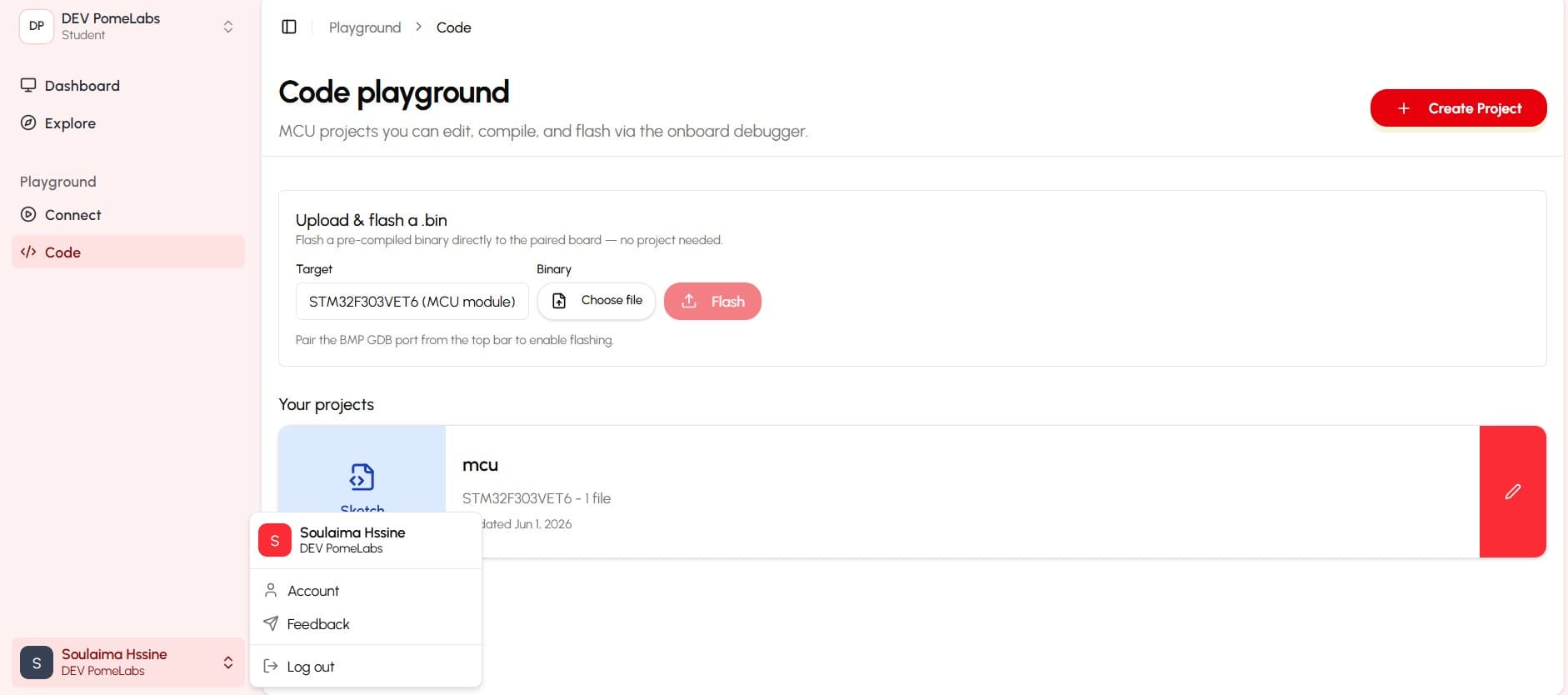
- Select your name at the bottom-left of the sidebar. An account menu opens.
- Select Log out. Your session ends and you are returned to the sign-in page.
From the same account menu, you can switch the interface theme between Light, System default, and Dark mode using the theme icons next to the Theme label.
How is this guide?