

Exploring Your Lessons and Assignments
Find assignments, navigate labs, and complete activities on PomeLabs.
PomeLabs organizes your academic content across two areas: the Dashboard and the Explore page. This guide explains where to find your assignments, how to open and navigate a lab, and how to complete the activities inside it.
Where to Find Your Content
The Dashboard
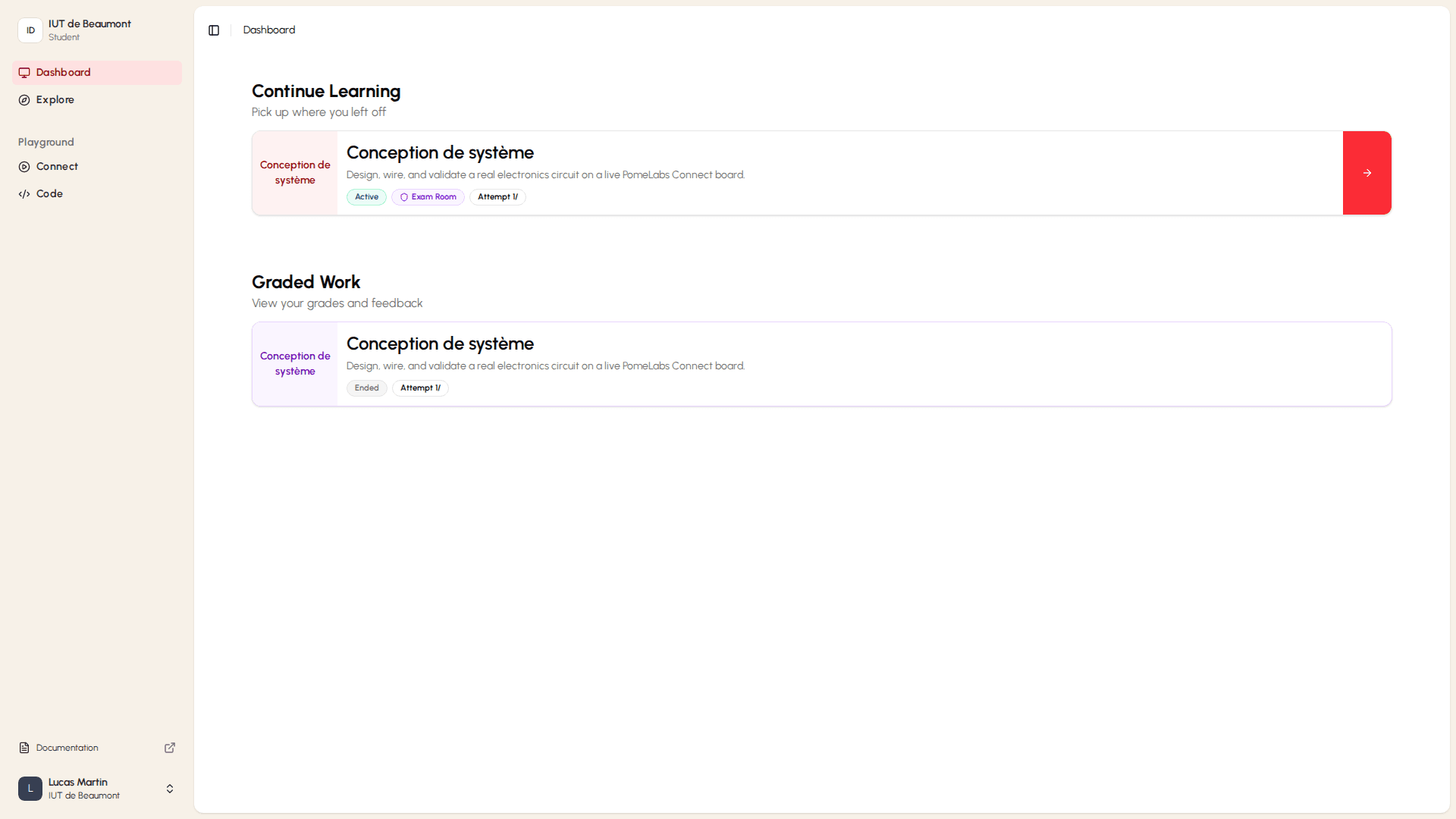
The Dashboard is your first stop each time you log in. It surfaces the content most relevant to you:
- Priority Assignments shows labs assigned by your professors that are due soon. These appear as cards at the top of the Dashboard, each marked with an Assigned badge.
- Continue Learning lists labs you have already started, so you can resume them without searching.
The Explore Page
The Explore page, accessible from the left sidebar, lets you browse all available lab sessions. Content is organized into two sections:
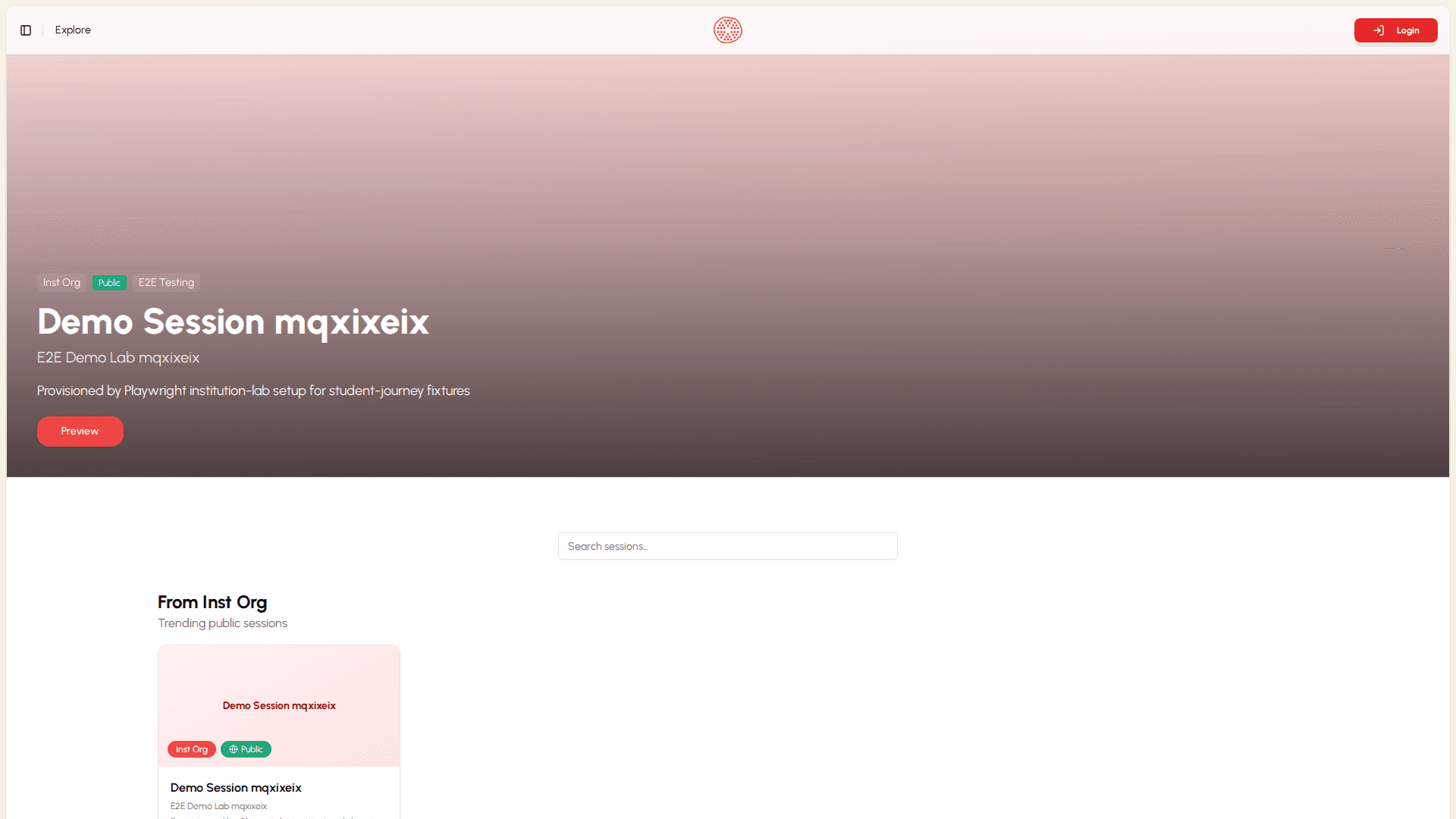
- From your organization shows sessions published by your institution. Each card displays the lab title, subject, group, date range, and page count.
- From PomeLabs shows public trending sessions created by the PomeLabs team, available for independent practice.
To open a session from the Explore page, select the Explore → link on a card or select the card itself to view its details.
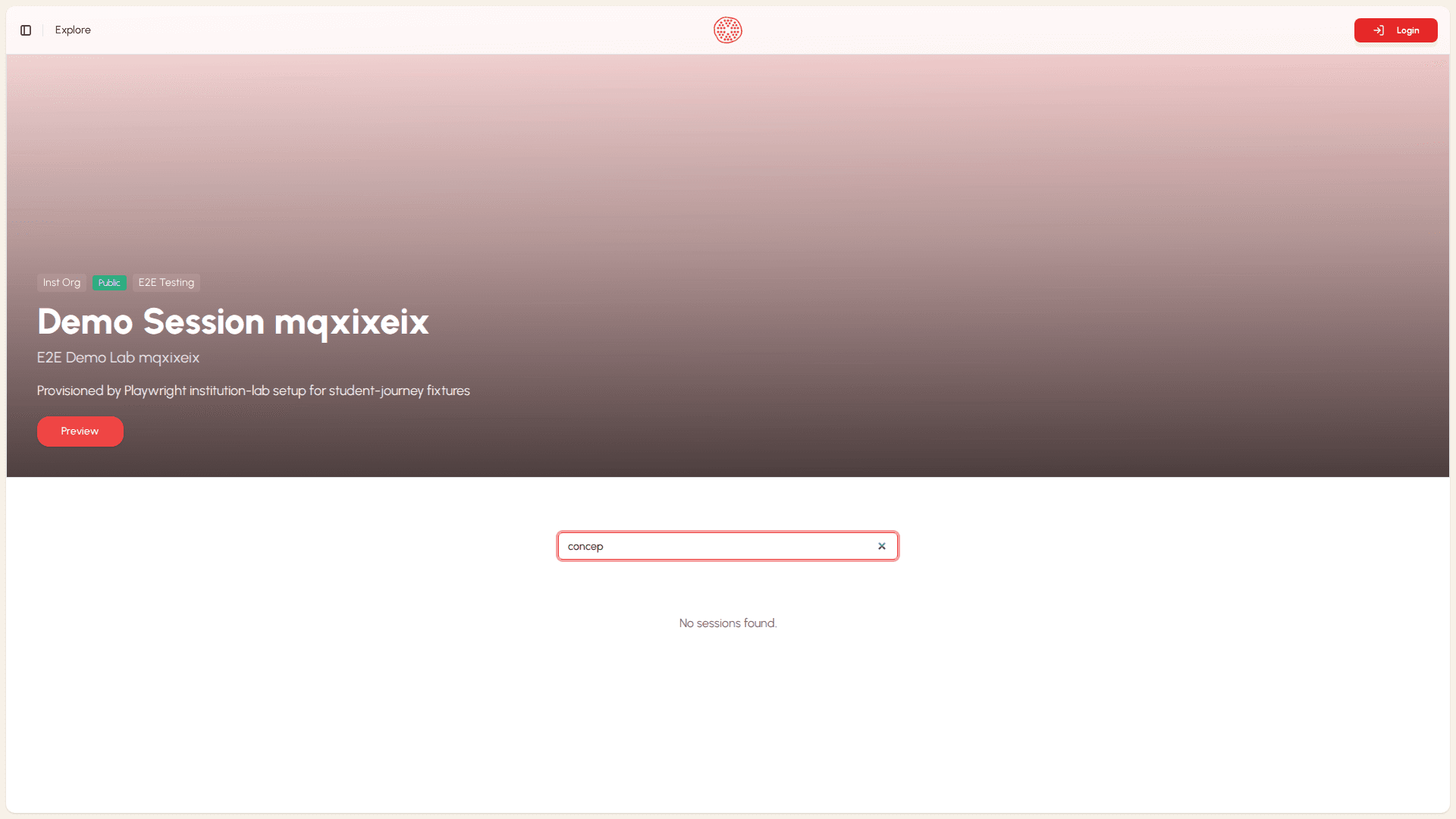
Use the search bar at the bottom of the Explore page to filter sessions by keyword or topic.
Opening and Starting an Assignment
Once you have found an assignment on your Dashboard or the Explore page, follow these steps to begin.
From the Dashboard
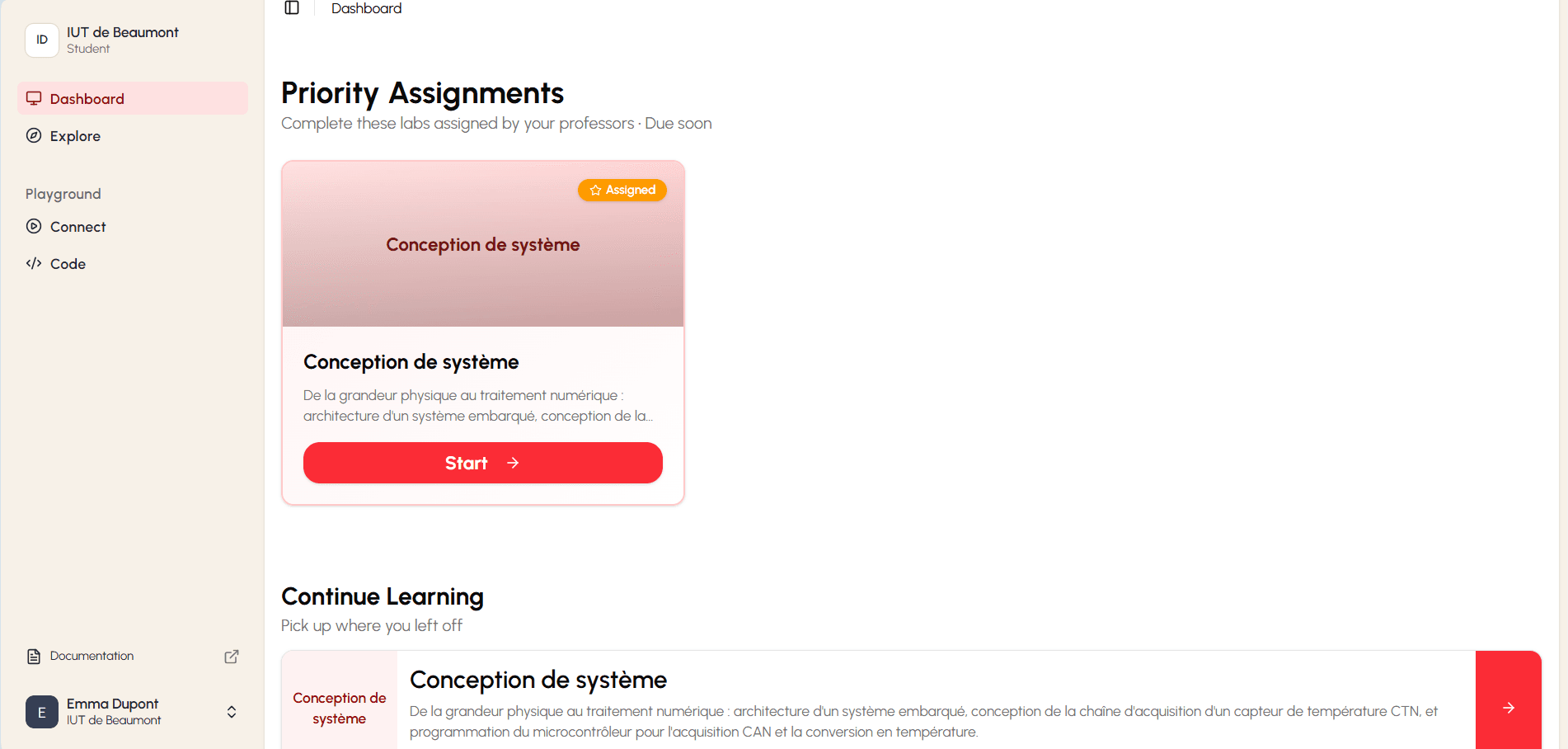
- Locate the assignment in the Priority Assignments section.
- Select Start on the lab card. The session detail page opens.
- Review the session details, including the lab title, date range, group, and page count.
- Select Start Lab to enter the lab and begin working.
Joining a Live Session with a Code
If your professor displays a session code during class, you can join the live session directly:
- Open the session detail page from your Dashboard or the Explore page.
- In the Have a join code? field at the bottom of the page, enter the code shown on the projector (for example, VOLT-274).
- Select Join to connect to the live session.
Navigating Inside a Lab
Once inside a lab, content is divided into pages. Each page contains instructional material and one or more activities.
The Lab Outline
The Lab Outline provides a structured list of all pages in the lab. For each page it shows:
- The page title and a brief description of its content.
- An activity count indicator showing how many activities the page contains.
- A Start button for pages not yet visited, or a Review button for pages you have already completed.
Select Start on any page to open it.
Moving Between Pages
Within a lab page, use the navigation buttons at the top-right of the content area:
- Previous — returns you to the preceding page.
- Next — advances you to the following page.
Your progress is saved automatically as you navigate between pages. You do not need to save your position manually.
How to Complete Activities
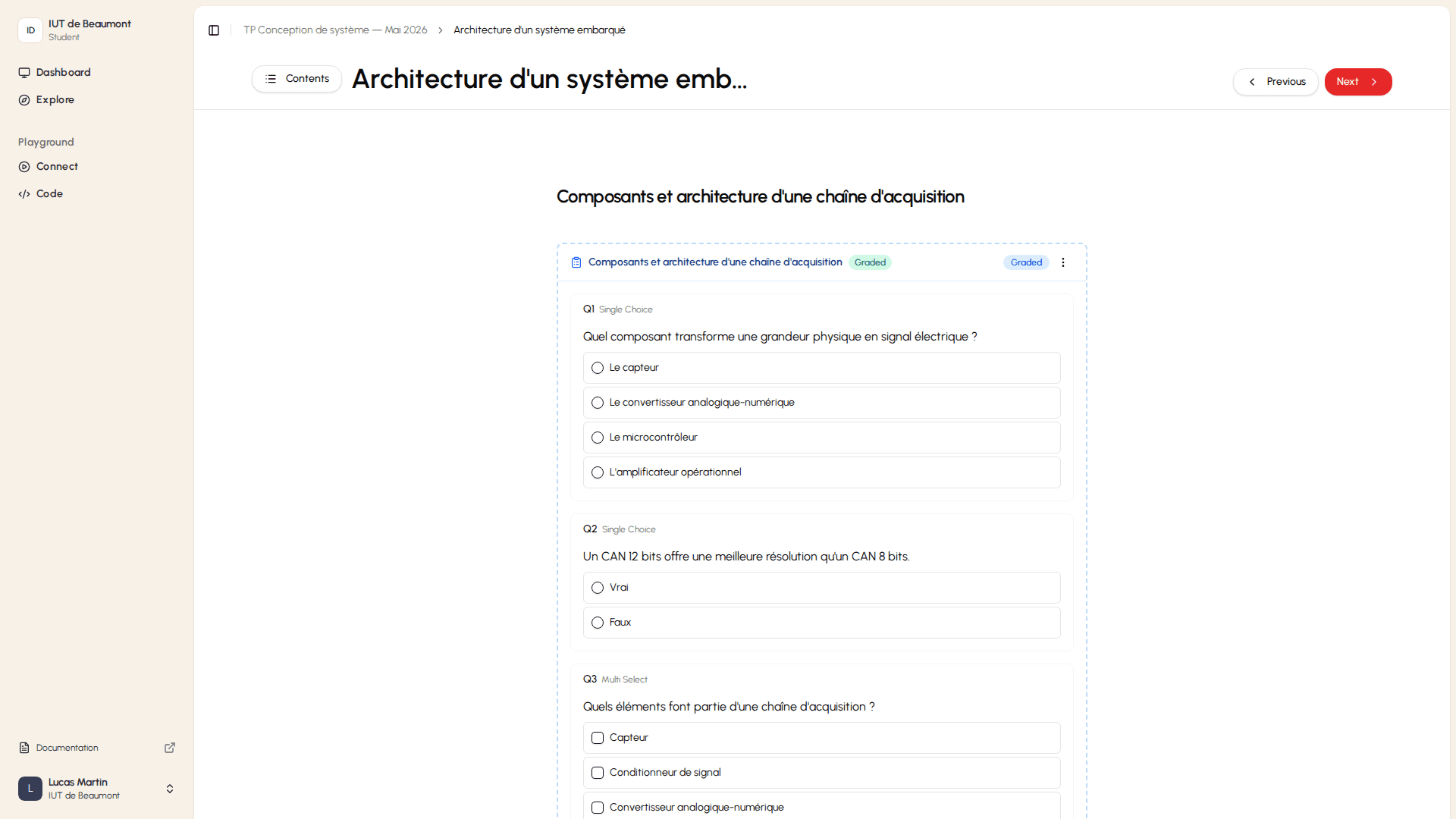
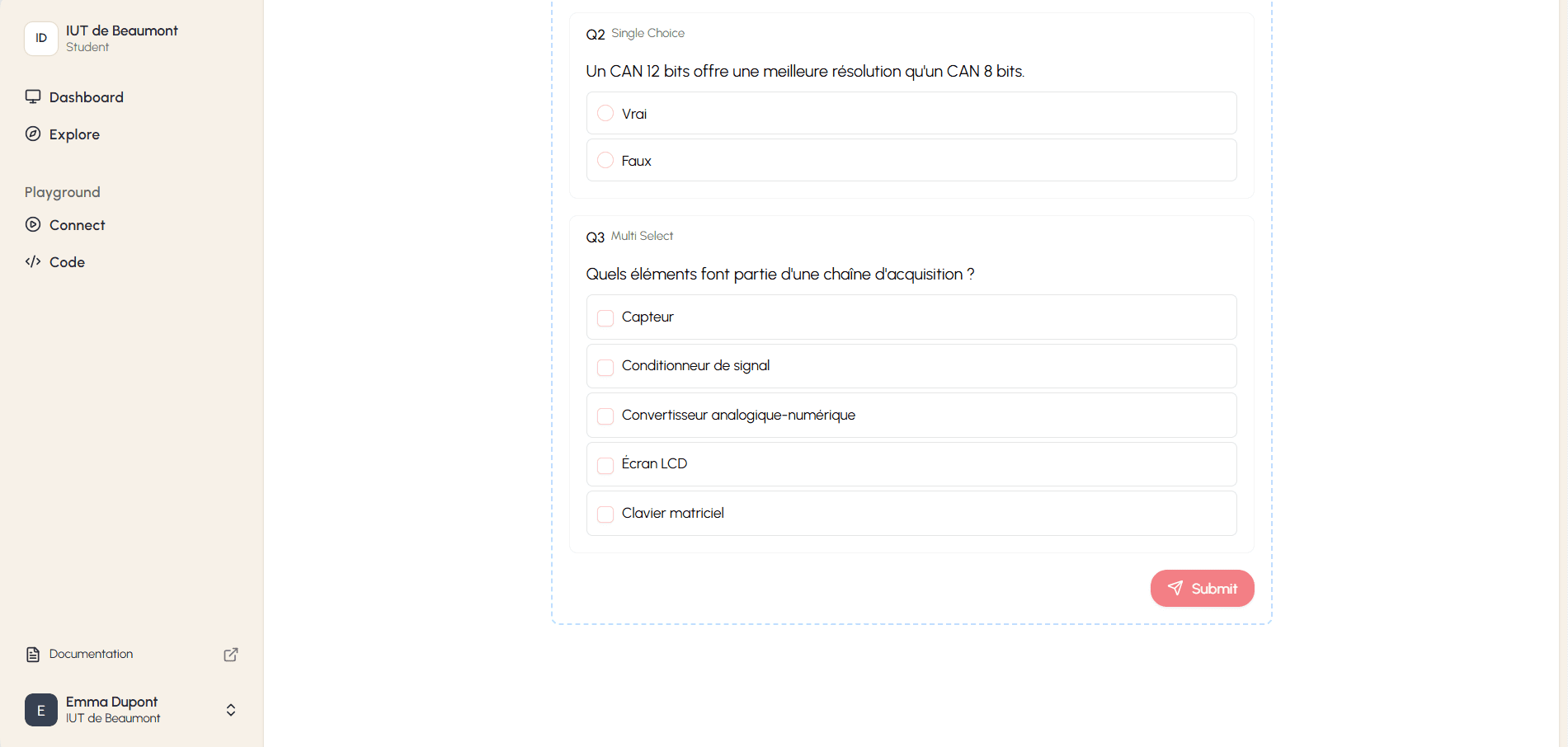
Each lab page may contain one or more activities. Activities vary in type depending on the learning objectives of the page.
Activity Types
- Single Choice: A question with one correct answer. Select the radio button next to your chosen answer.
- Multi Select: A question where more than one answer may be correct. Check all boxes that apply.
- True / False: A statement you evaluate as either true or false. Select the appropriate option.
Submitting Your Answers
- Read the question carefully. The activity type is shown above the question text.
- Select the answer or answers you believe are correct.
- Select the Submit button at the bottom-right of the activity to record your response.
Some activities are marked as Graded, meaning they contribute to your academic evaluation. These display a Graded badge on the activity card.
How is this guide?